Yield
Compare yield farms across DeFi, whether they earn swap fees alone or offer extra incentives. Enter and exit positions, and compound earnings in one click, all from a single interface.
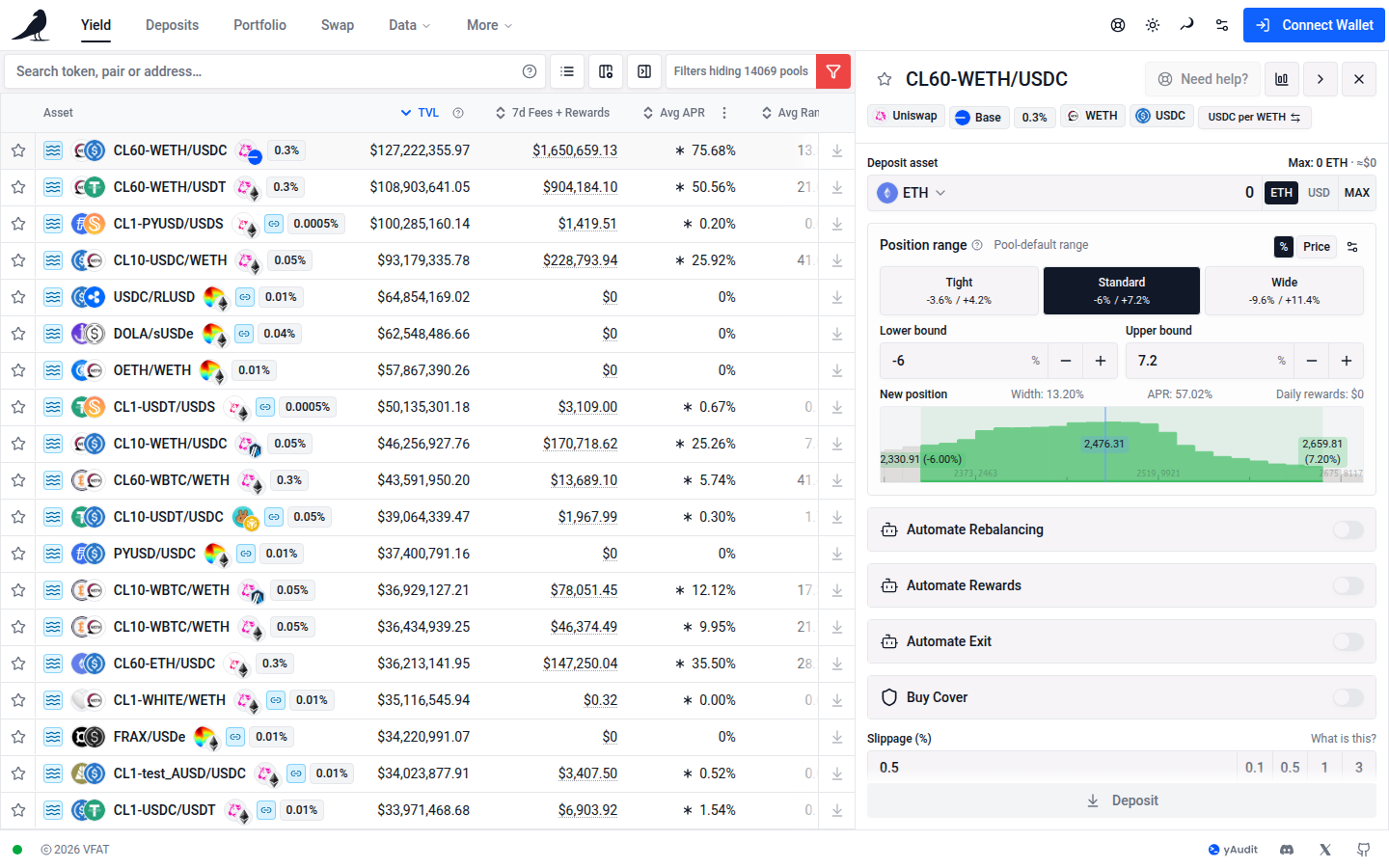
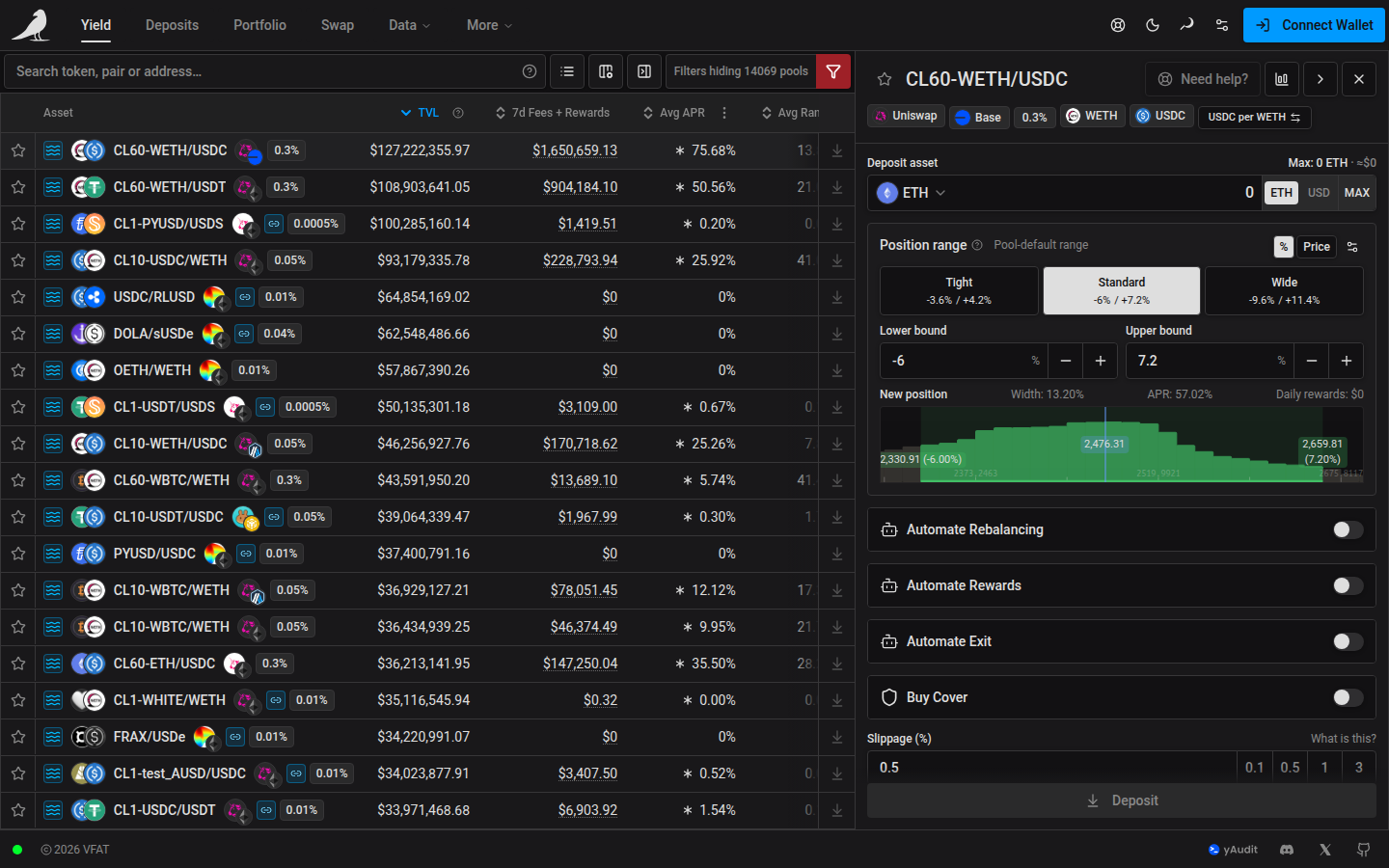
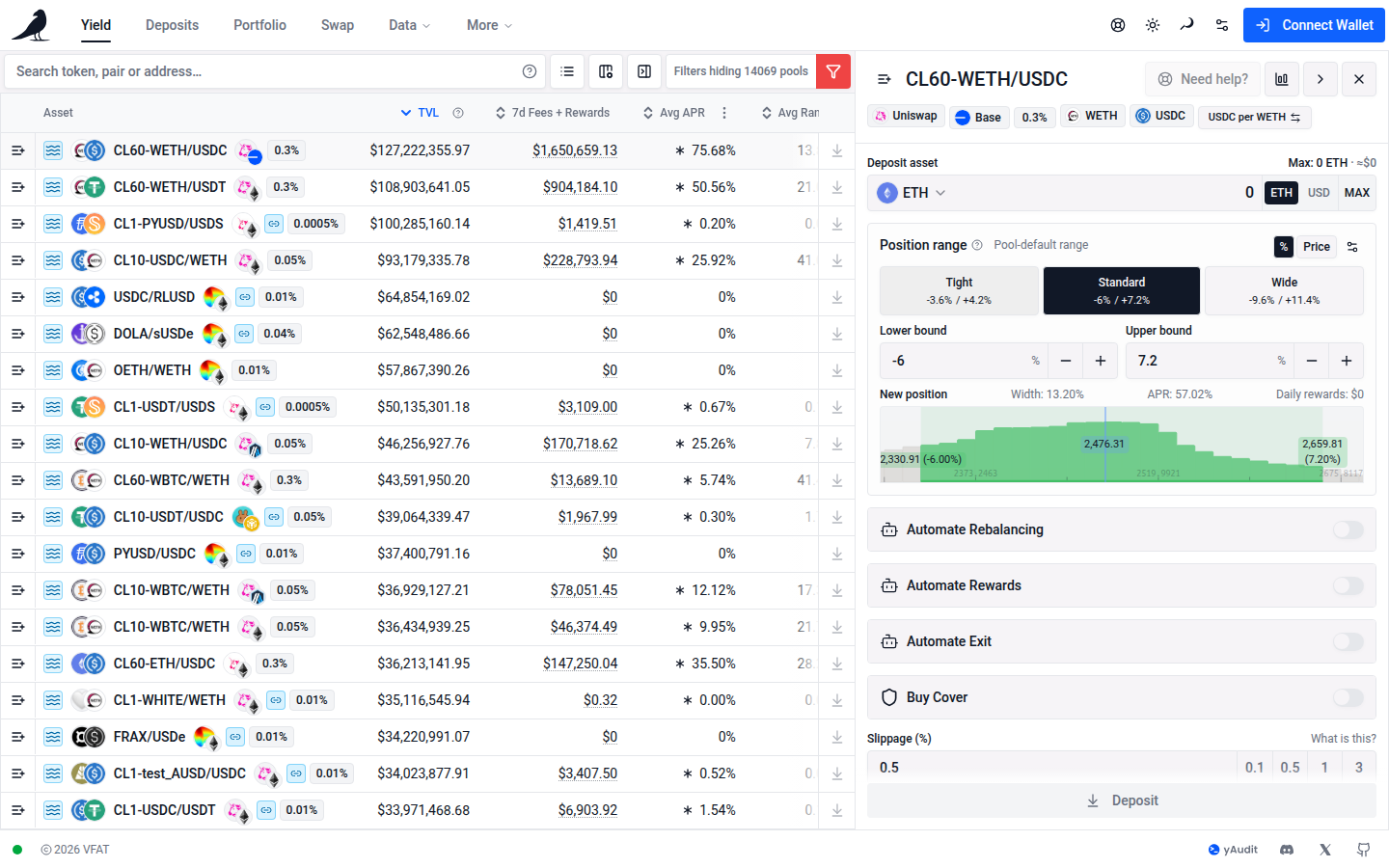
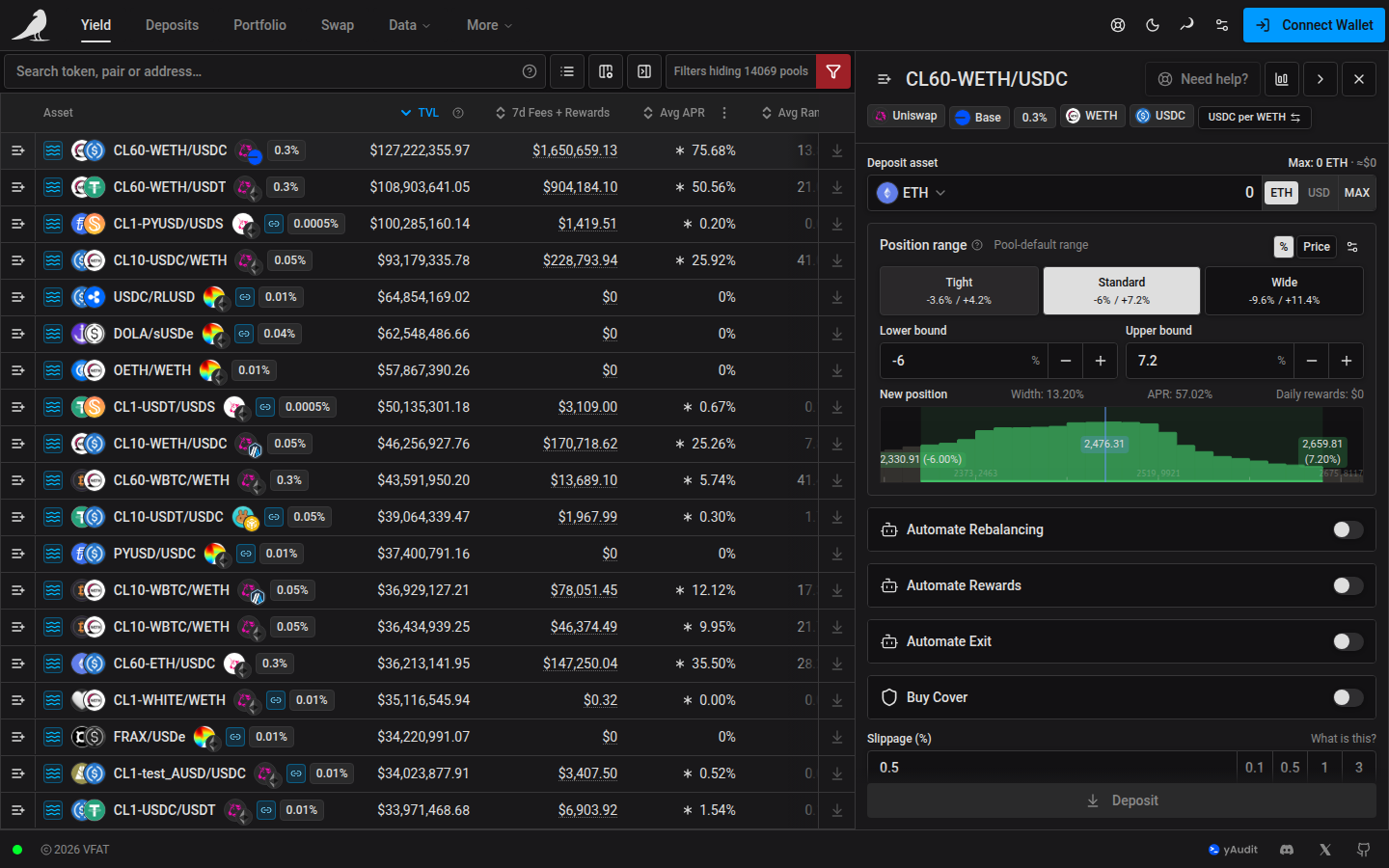
vfat.io indexes farms across a growing list of protocols and chains. See the live list on the Protocols page. Each pool appears once, showing the available option with the highest Avg APR that matches your filters. The default updates when new browse data arrives. Sorting uses that option’s values. The icon at the start of each row shows its deposit option: a green sprout means Staked, and blue waves mean Unstaked. TVL, Rewarded TVL, Active TVL, APR and income all describe that same option. When the displayed option changes, the icon and metrics change together. The liquidity figures cover all users. Pool volume and fee tier describe the shared pool.
On desktop, the first farm is selected automatically and, when the widget is enabled, its action pane opens while the row stays collapsed. Click the selected row to expand its inline details.
Use the Hide widget icon in the desktop table toolbar, or Close in the action pane, to give the table the full width. The widget stays hidden when you click rows, switch tabs, or reload. Select the Show widget icon to restore it for the current row and resume following row selections. This preference is shared with Deposits. On smaller screens, row selections still open the action sheet and Back returns to the table.
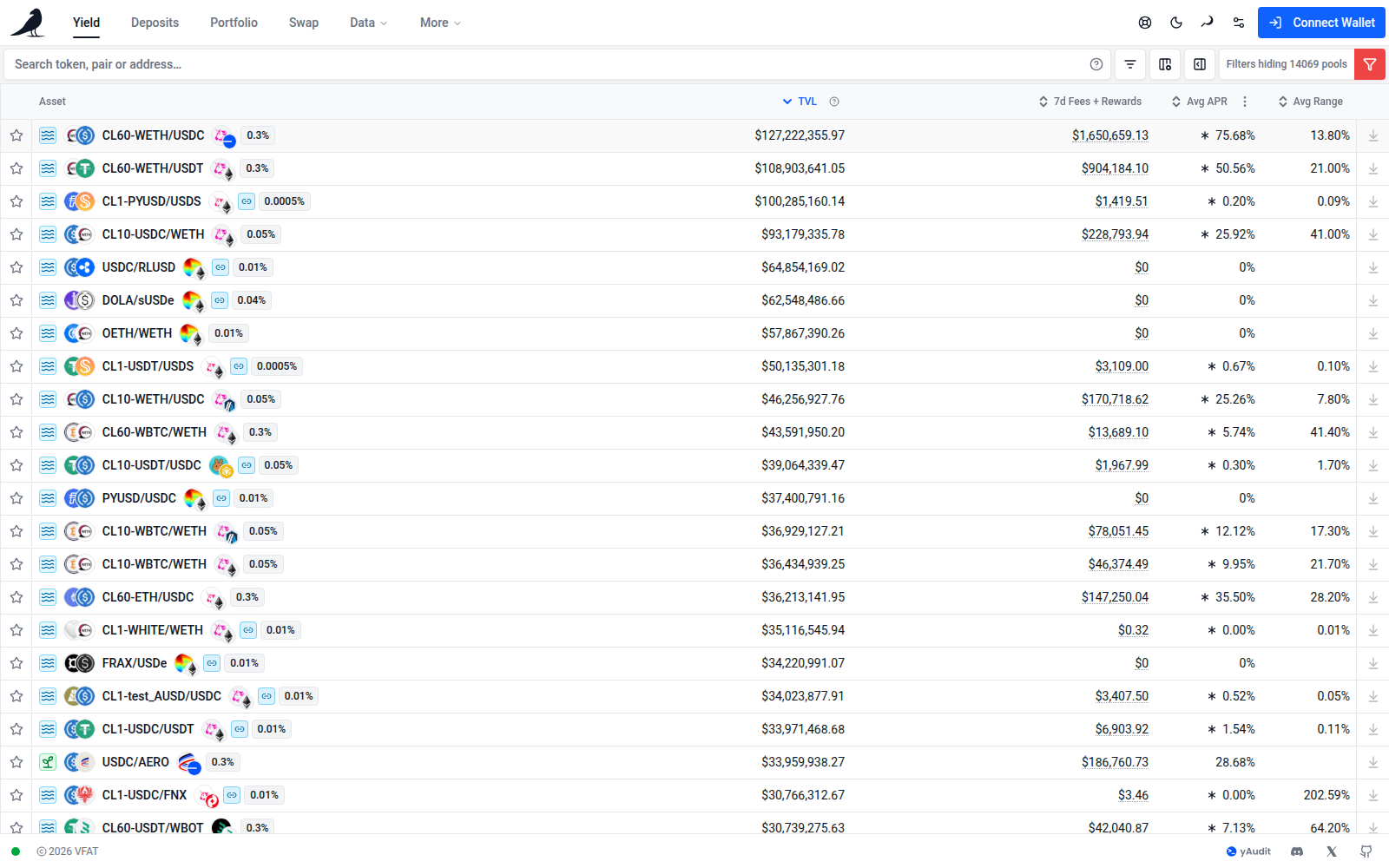
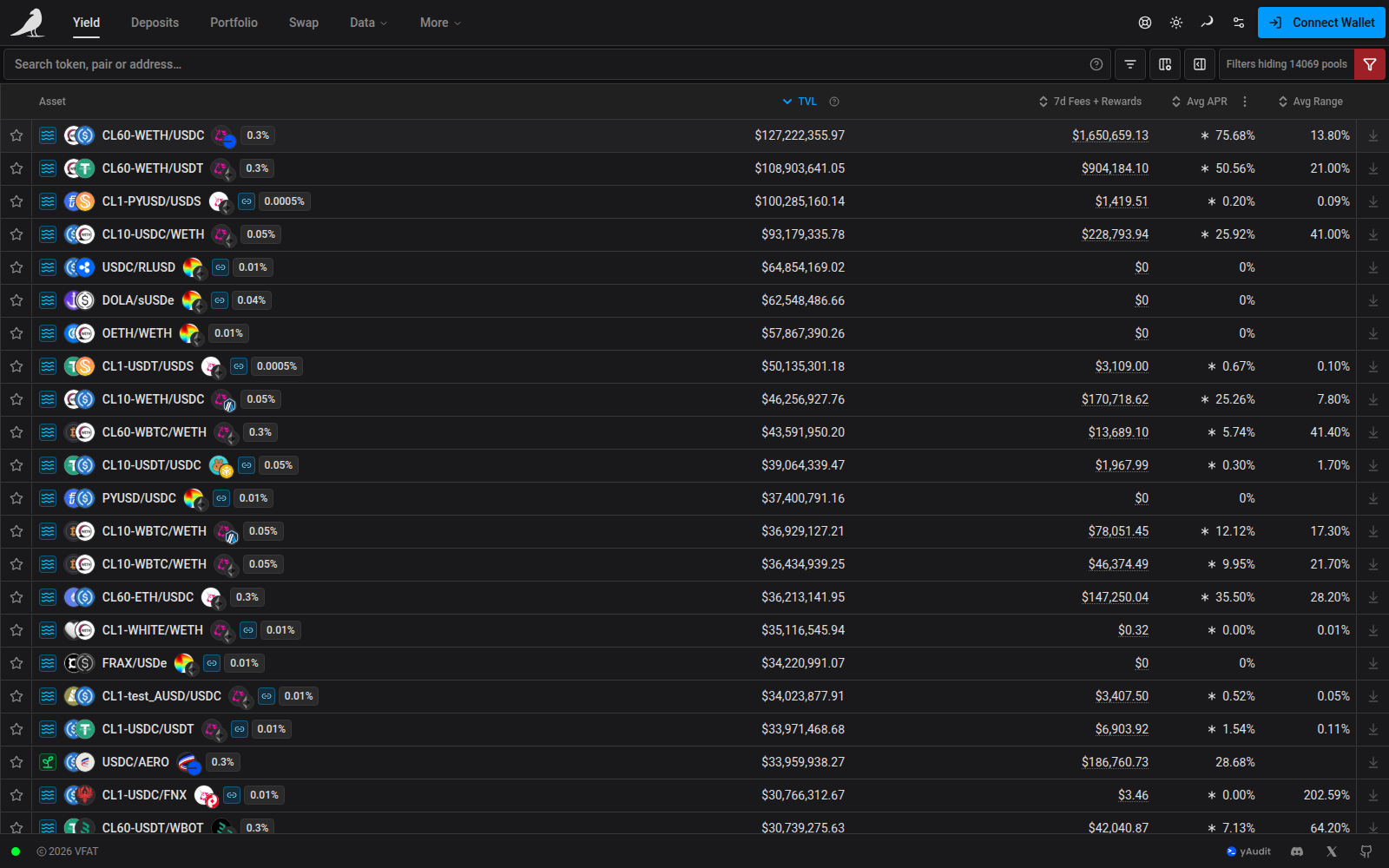
Expanded details show the Pool alongside its available Farm panels, including staked TVL, reward tokens, reward APR and the farm contract. Filters determine which pools appear; each pool’s details stay the same regardless of the filter or deposit mode selected. Viewing details does not change your deposit choice. On phones, the same details appear below the action form.
For Uniswap v4 pools, Contract shows the shared PoolManager address. Use Pool ID to distinguish individual pools: hover over the shortened ID to see the full value, or use its copy button to copy it.
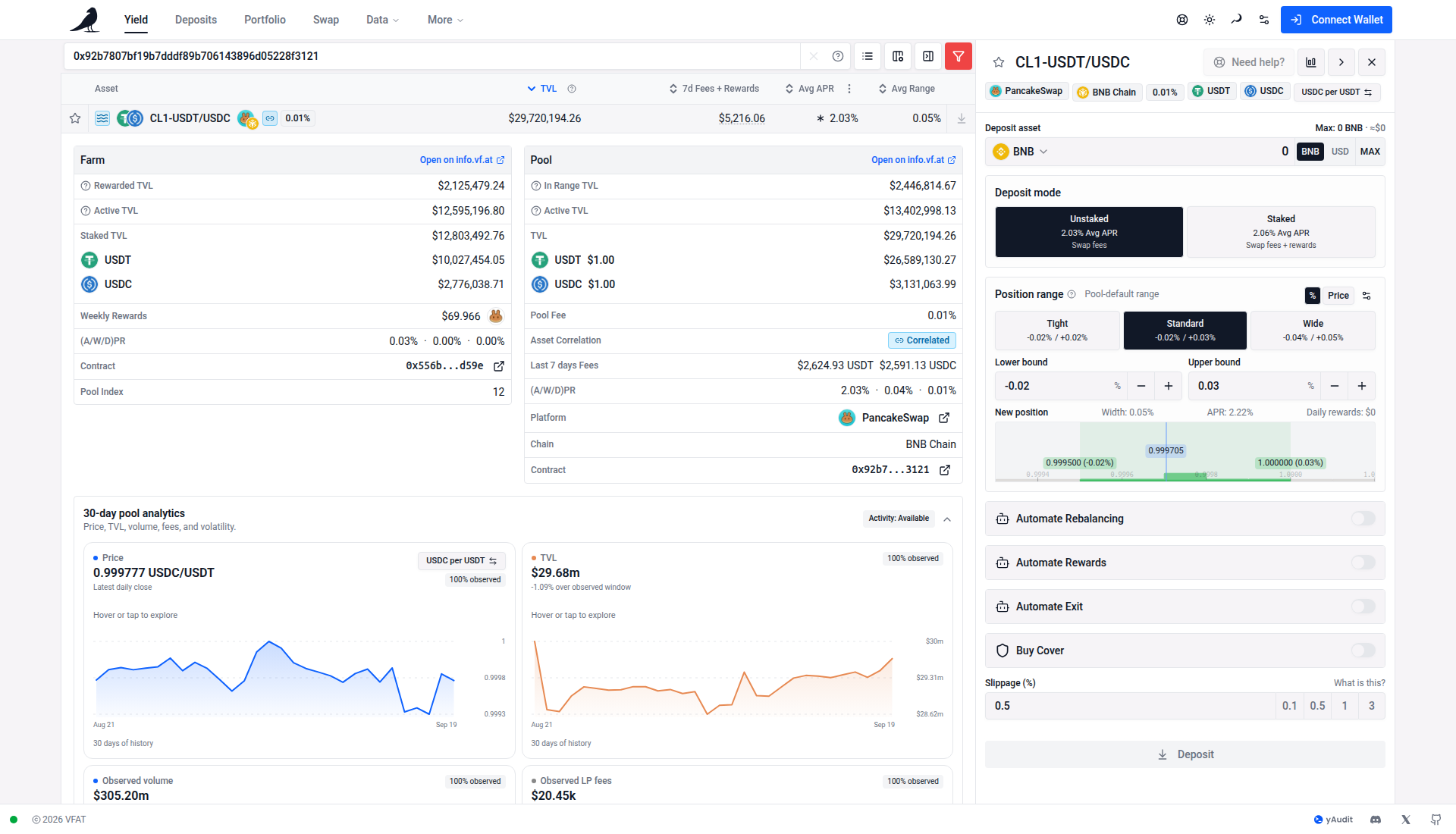
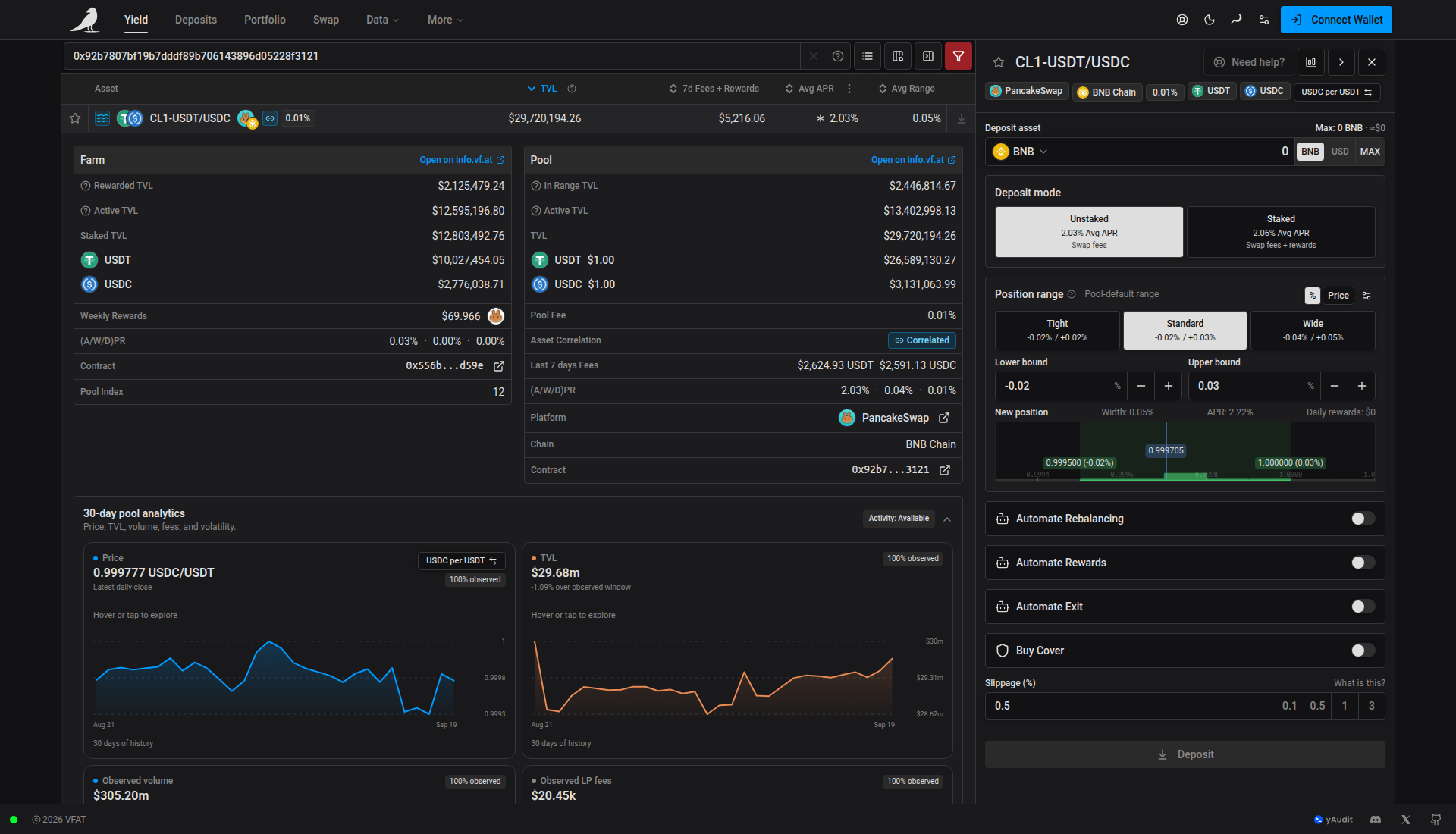
On large monitors, the Yield view stays centered with a maximum width of 2,000 pixels at the default text size. This keeps tables and action panes close together while giving them more room than the previous layout. Enable Use full width in App Settings to fill the screen instead; your choice is saved in your browser and also applies to the other data views listed there. Smaller screens continue to use the available width.
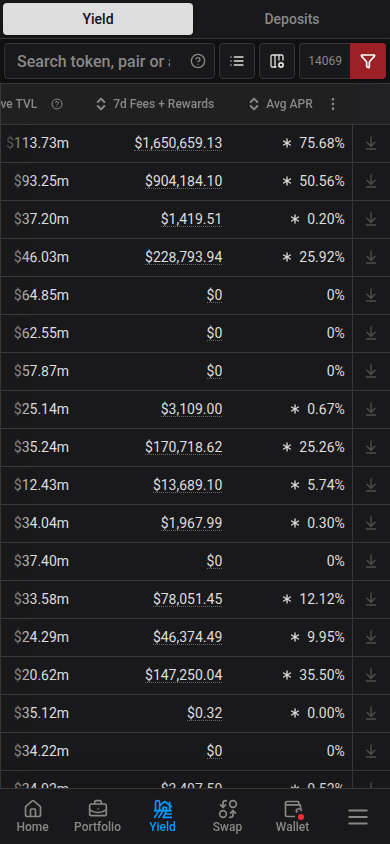
Use Yield and Deposits in the desktop navigation or the tabs above the table on phones. In the desktop header, the current page uses stronger text and a thin underline. Data or More carries the same underline when it contains the current page, including pages moved into More on narrower windows. Phones use compact filled tabs above the table. The table scrolls within the page; row actions remain pinned when scrolling sideways. Phones show Asset, TVL and APR by default, and Customize columns lets you add other columns.
On phones, swipe across the table to reach the additional columns you selected in Customize columns.
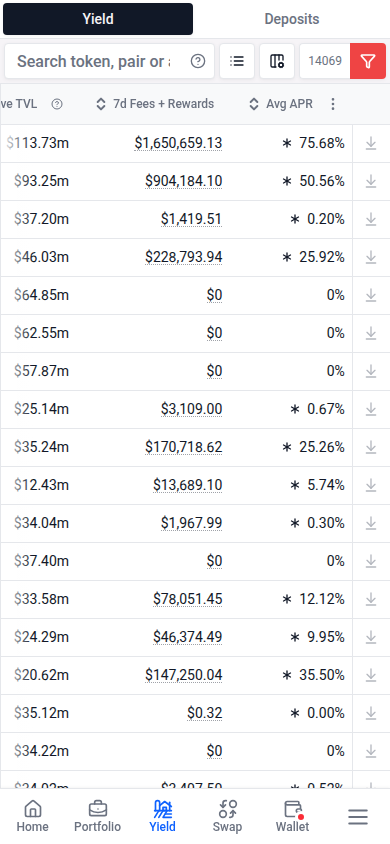
Yield is the only browse view. Existing /pools links redirect to /yield with their query filters and fragment preserved.
Shared Yield links preview the top pools by TVL, including pools earning swap fees without extra incentives. Each pool appears once with the average APR of its displayed deposit mode. Chain and protocol selections are reflected in the preview; other table filters and browser preferences are not.
Filtering
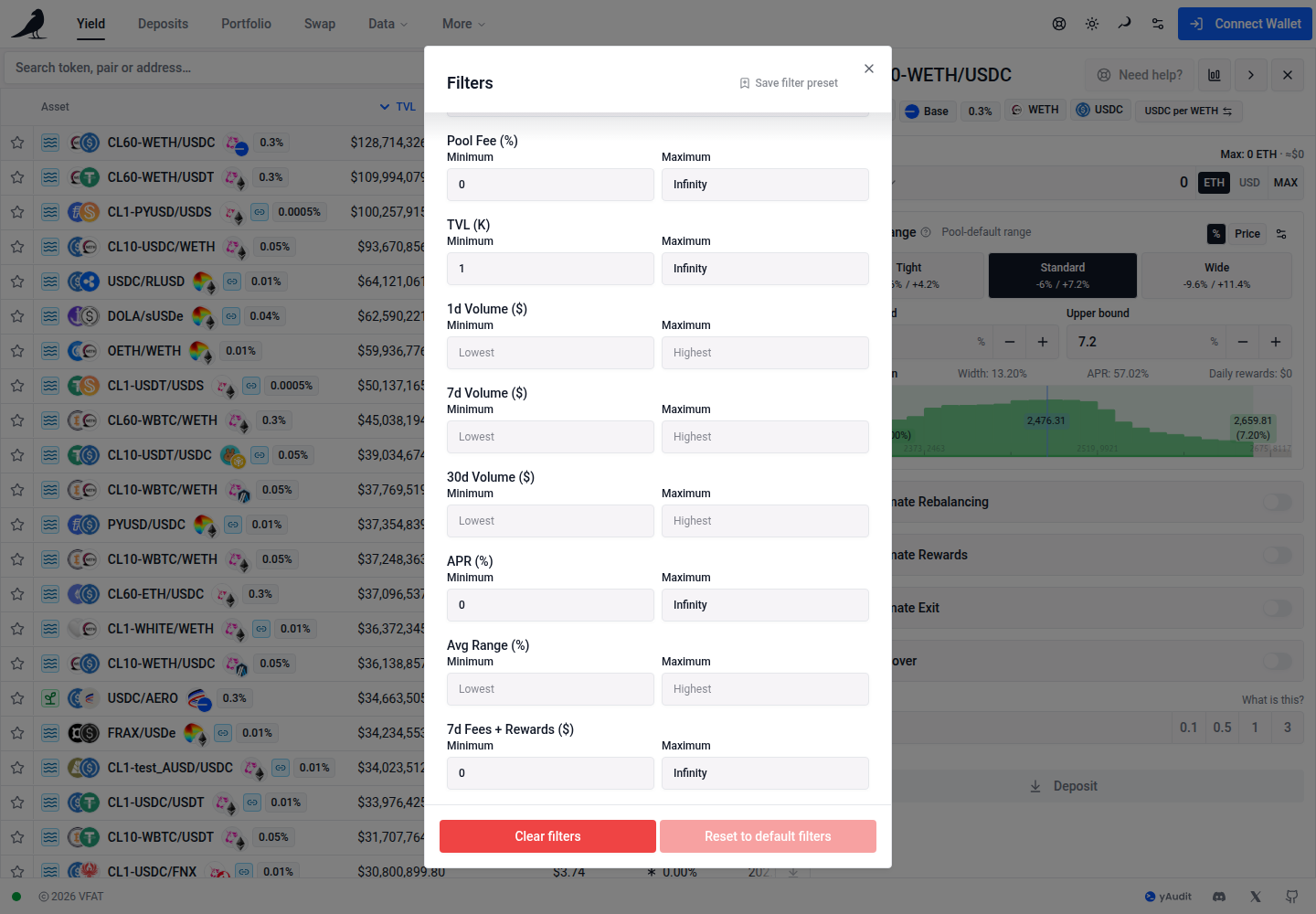
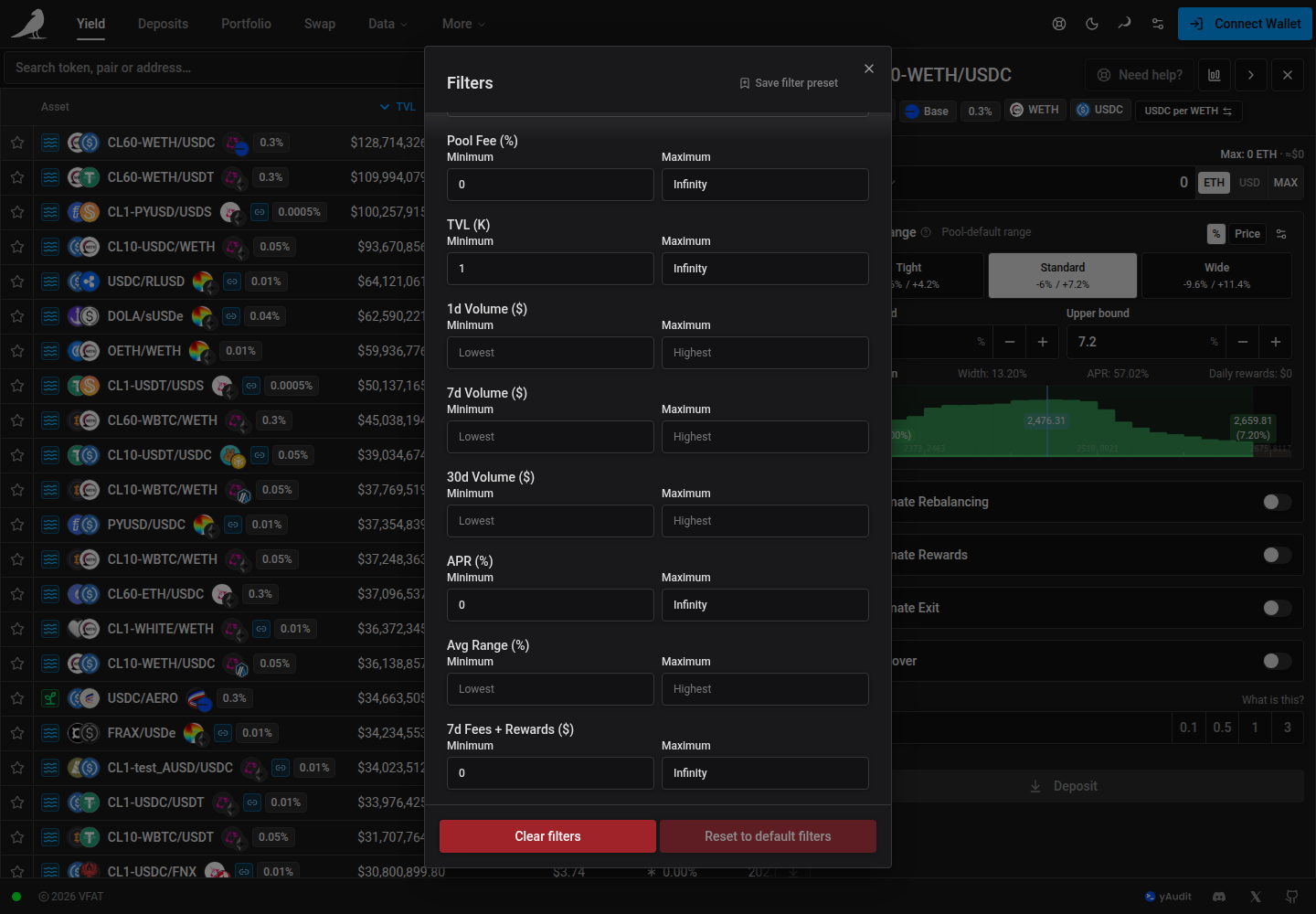
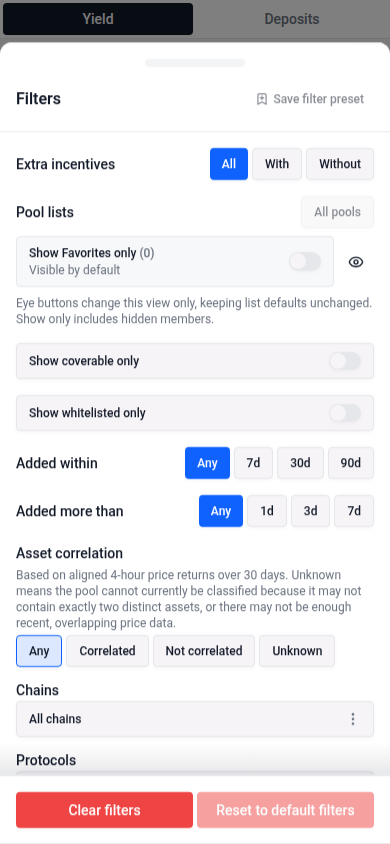
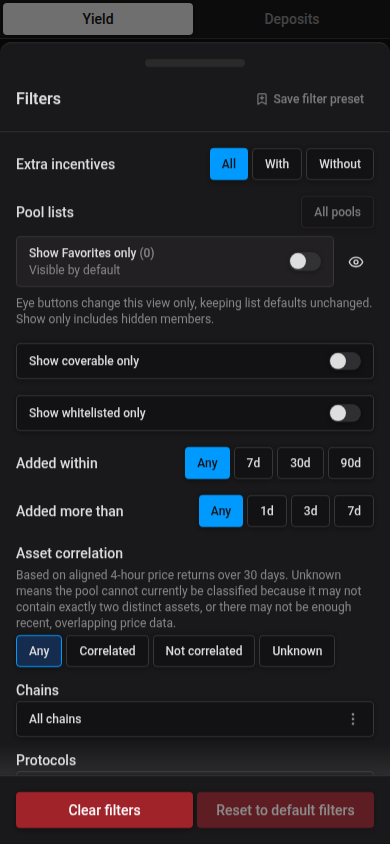
Open filters with the funnel button at the right of the table toolbar. It is red whenever filters are applied, including the default TVL, APR, and income limits, and neutral when filters are cleared. When filters hide results, the adjacent text-only Filters hiding… count lets you clear them. Reset to default filters restores the default limits and turns the funnel red again.
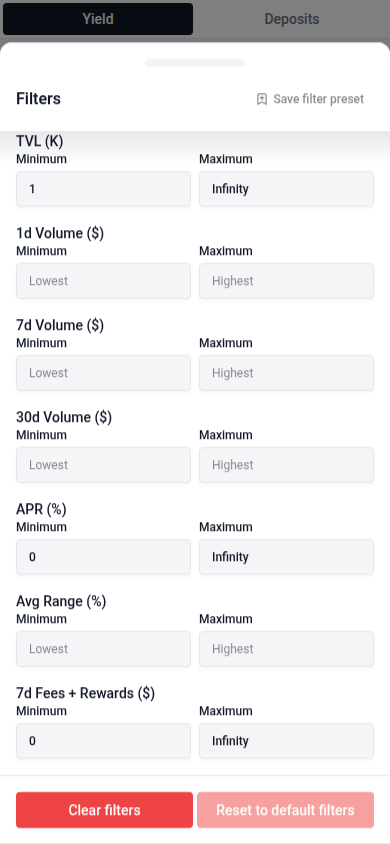
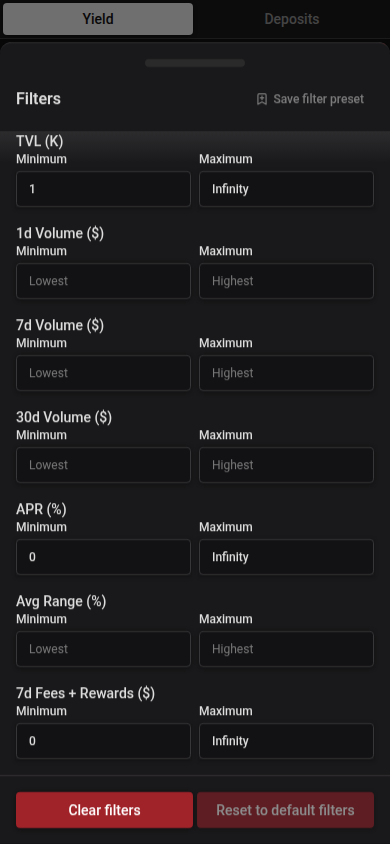
Use Avg Range (%) to set a minimum, maximum, or both for the average range width shown in the table. Enter percentages directly, such as 0.05 for 0.05%. Bounds are inclusive, and blank inputs leave that side unrestricted. An active bound excludes pools without a reported average range. The filter applies across all results and favorites in Yield, and is preserved in shared URLs and saved presets. Clear an input to remove that bound; clearing or resetting all filters removes both.
The row’s sprout or waves icon follows the displayed Staked or Unstaked option, including when both options offer rewards or a farm has no current emissions. Hover over or tap the icon to see which option its APR and TVL values describe, plus the pool’s extra-rewards availability. Opening this explanation keeps the row’s selection and details in place. Screen readers announce the displayed option.
The Extra incentives filter describes all of the pool’s deposit modes. An available farm qualifies even when its current reward rate is zero. Pools without a farm qualify when they report positive non-fee rewards or APR. Unavailable farms, points alone, and swap fees alone do not qualify.
Under Filters → Extra incentives, choose All, With, or Without. With displays and sorts each row using an available farm or a mode with extra rewards that matches the other filters. Without excludes pools with any such mode. The choice applies to the full pool list and is included in shared links and saved filter presets. Clearing or resetting filters returns to All.
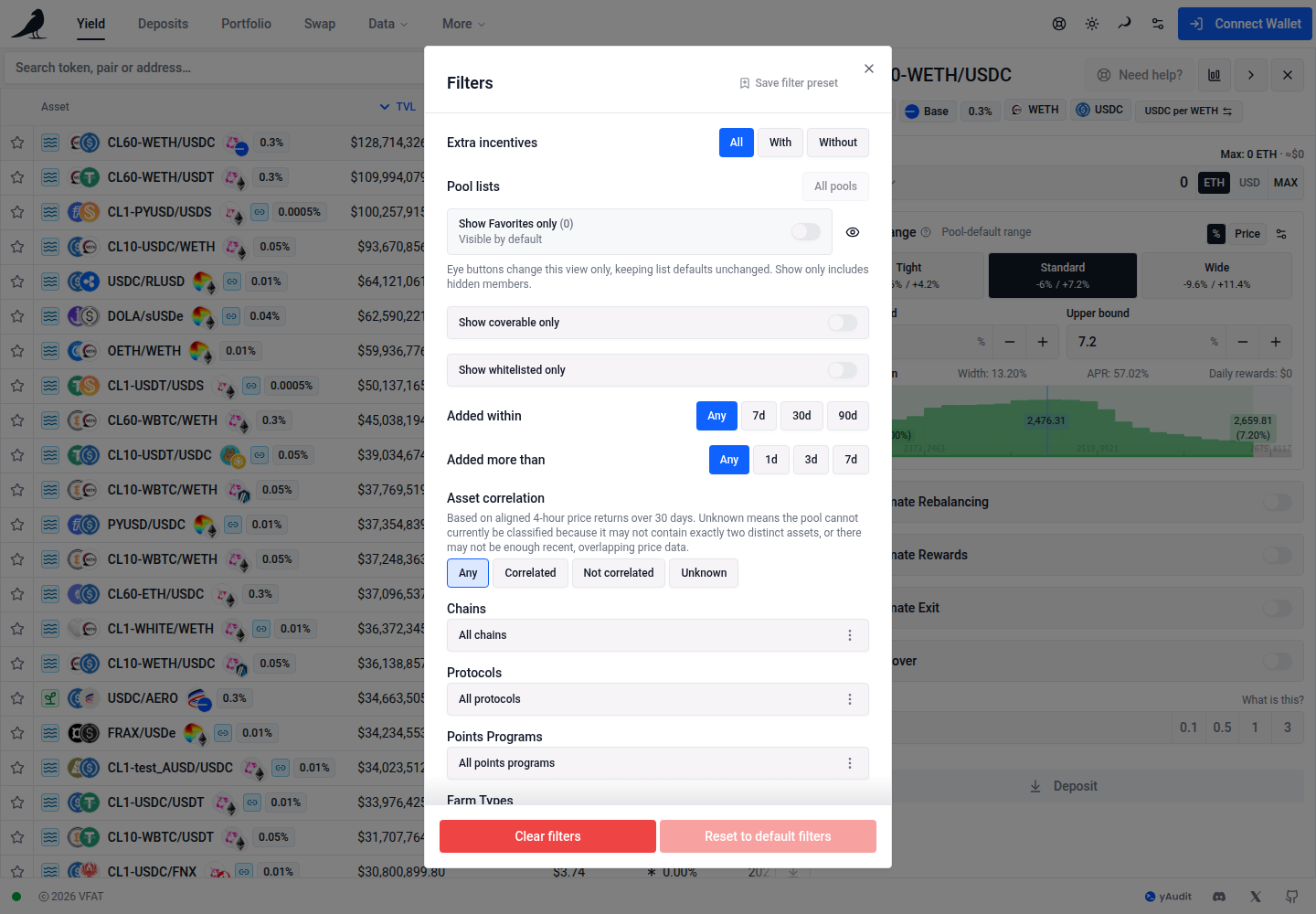
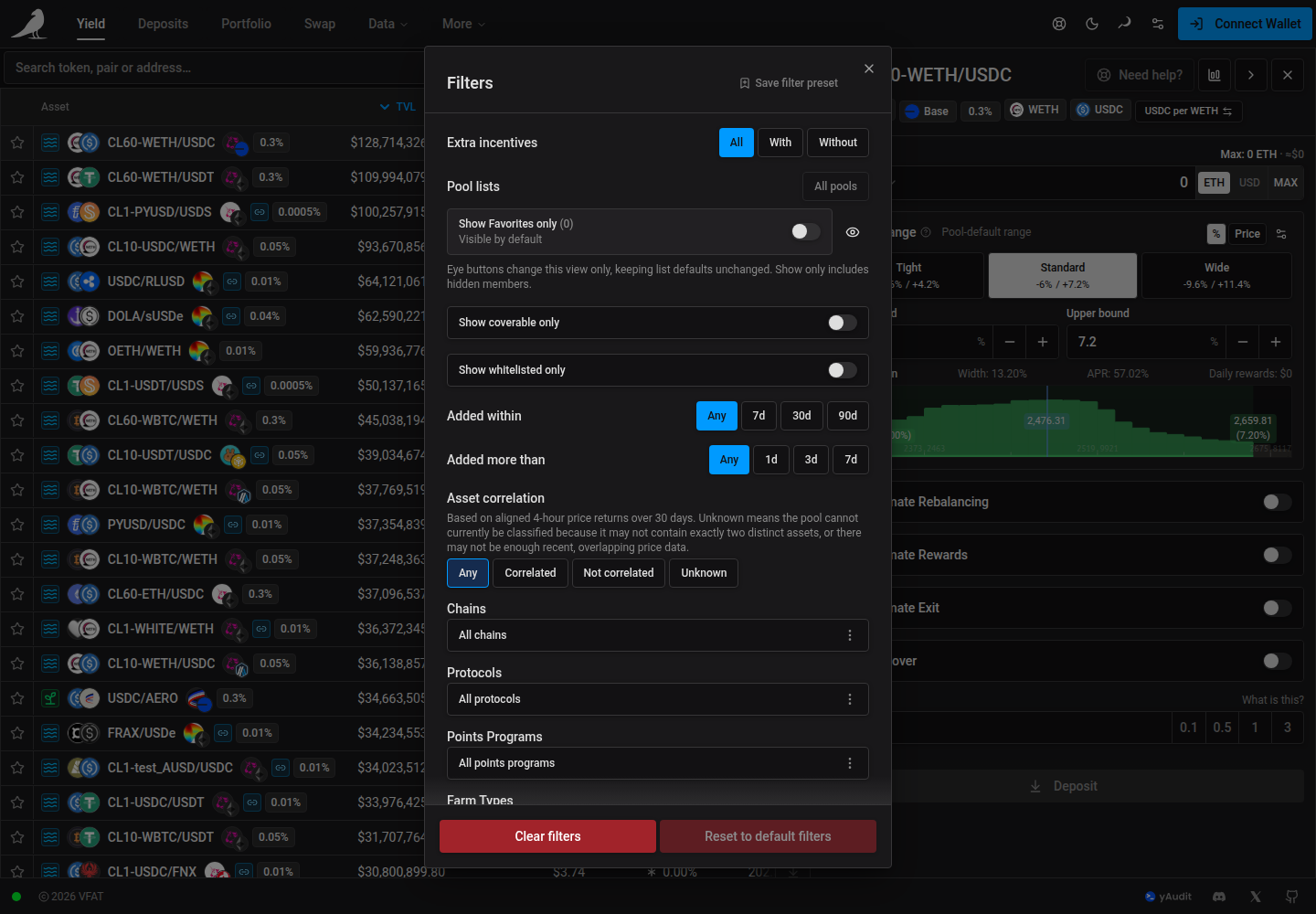
The same choices appear in the mobile Filters sheet.
Search by token symbol, a pair such as WETH/USDC in either order, or a concentrated-liquidity label such as CL200-WETH/USDC. You can also search by a farm or pool address, or a pool ID. The field shows what you can search for instead of an asset count. Open the Search help question-mark button for examples. Symbol matches are partial and ignore case, so ETH can also return WETH; use a pair to narrow the results, or select chains and protocols under Filters.
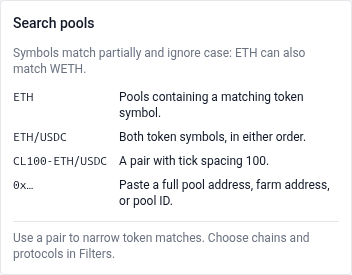
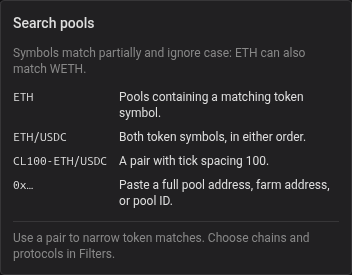
Very long token symbols and names are shortened in the interface. Results that match only the hidden portion of oversized metadata are excluded from search. If matching farms are hidden by your active filters, use Clear filters to reveal them.
Clear filters removes the numeric limits, including minimum APR and income, so pools with unavailable metrics can appear. Reset to default filters restores the $1,000 minimum TVL and zero minimum APR and income; a zero minimum still excludes an unavailable metric. The search text and your global asset-visibility preference are kept. The Filters hiding… count covers available pools excluded by your current filters; pools with no available deposit mode are outside that count.
The table can be filtered and sorted by protocol, chain, farm type (concentrated liquidity, stable or volatile), asset correlation (correlated or uncorrelated pairs), points programs, pool lists, whether cover is available, and by numeric thresholds for APR, TVL, combined fees and rewards, fee tier, pool volume and pool age. This is useful once you’re comparing hundreds of farms at once.
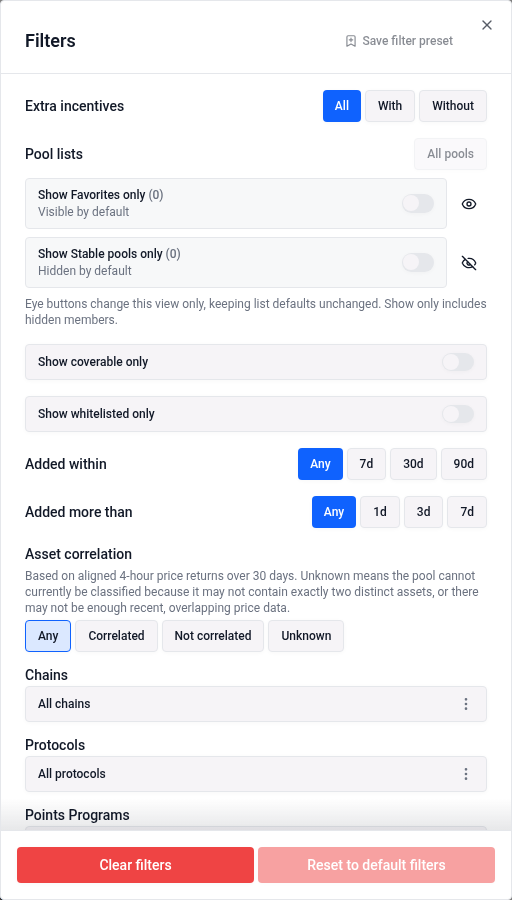
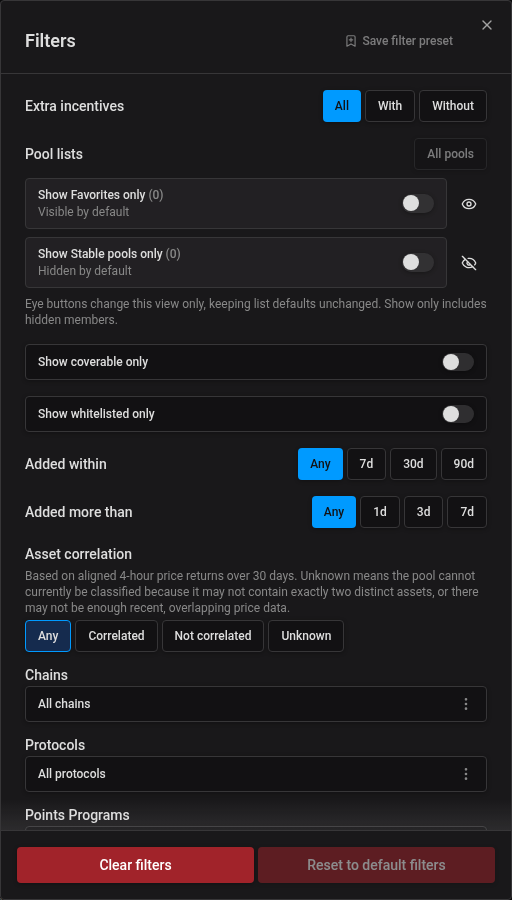
Enable Show whitelisted only under Filters to hide non-whitelisted farms on this page. The selection is included in shared links and saved filter presets. Turning the filter off follows Show non-whitelisted assets in App Settings; it does not change that global preference. Clear Filters and Reset Filters remove the page’s whitelist restriction.
Use Added within to find pools added in the last 7 / 30 / 90 days, or Added more than to exclude pools added in the last 1 / 3 / 7 days. Choose Any to remove either age limit. If a selection makes the minimum age equal to or greater than the maximum, the other age limit resets to Any. These filters are included in shared links and saved presets.
Open Customize columns beside the search bar and use Time period to select 1d / 7d / 30d. This updates the existing Fees + Rewards column; choose 1d for daily income. The selection defaults to 7d, is remembered in your browser, and is included in the URL when changed. Avg APR and its range/compounding options stay unchanged.
Rewarded TVL and Active TVL are hidden by default. Choose Customize columns → Detailed view to show them alongside TVL, APR, and the selected period’s Fees + Rewards. All three liquidity columns refer to the same pool or staking farm as the row’s APR:
- TVL is its total liquidity.
- Active TVL is the total value of its positions currently in range.
- Rewarded TVL is the portion of that active liquidity in the current price range that earns fees or rewards.
Hover over or tap each liquidity heading’s help icon for its definition. Filters and deposit choices can change which option is displayed; the three liquidity values and APR follow that option together. These preferences are saved, including on phones; Reset to Default restores responsive defaults.
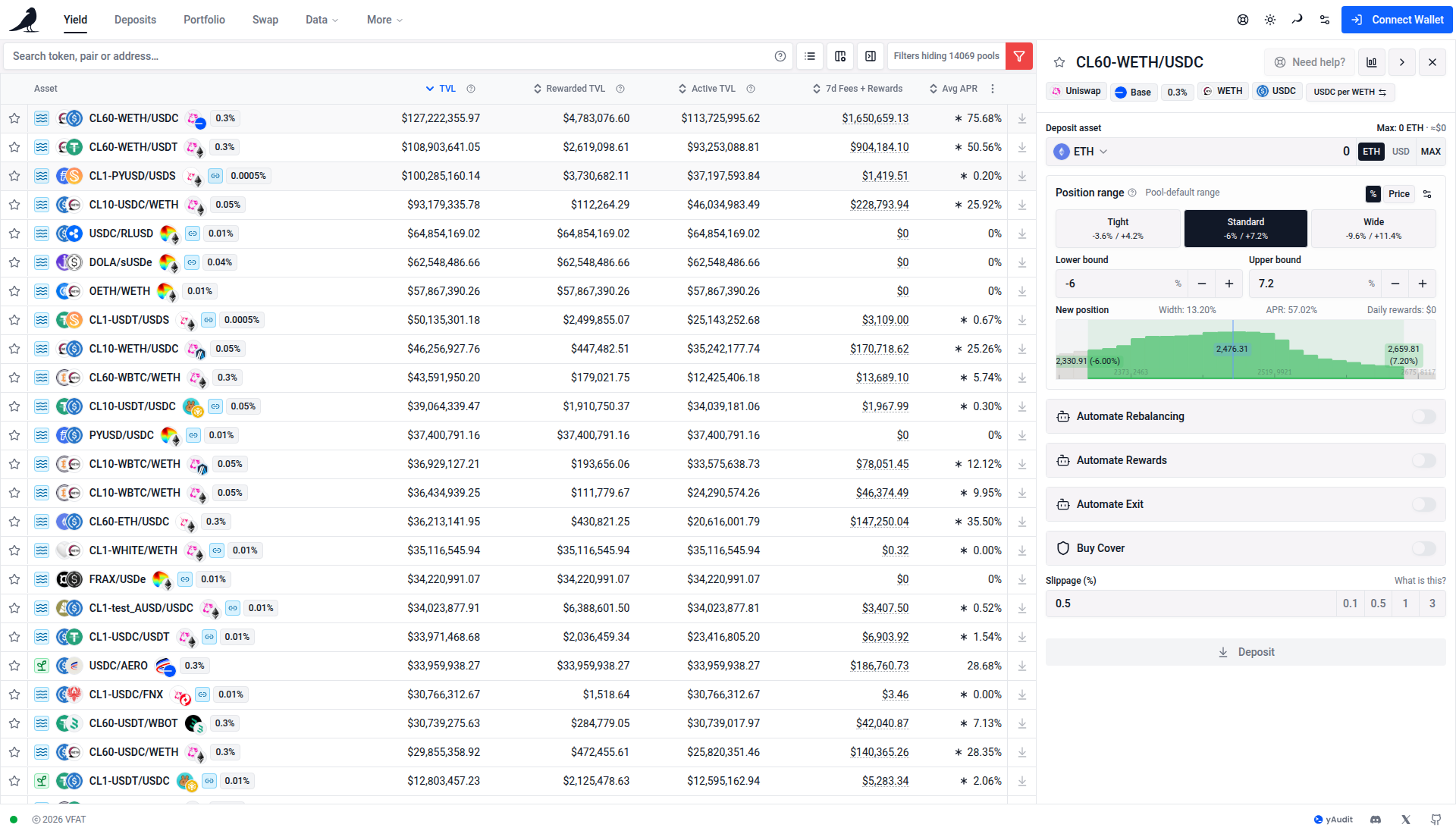
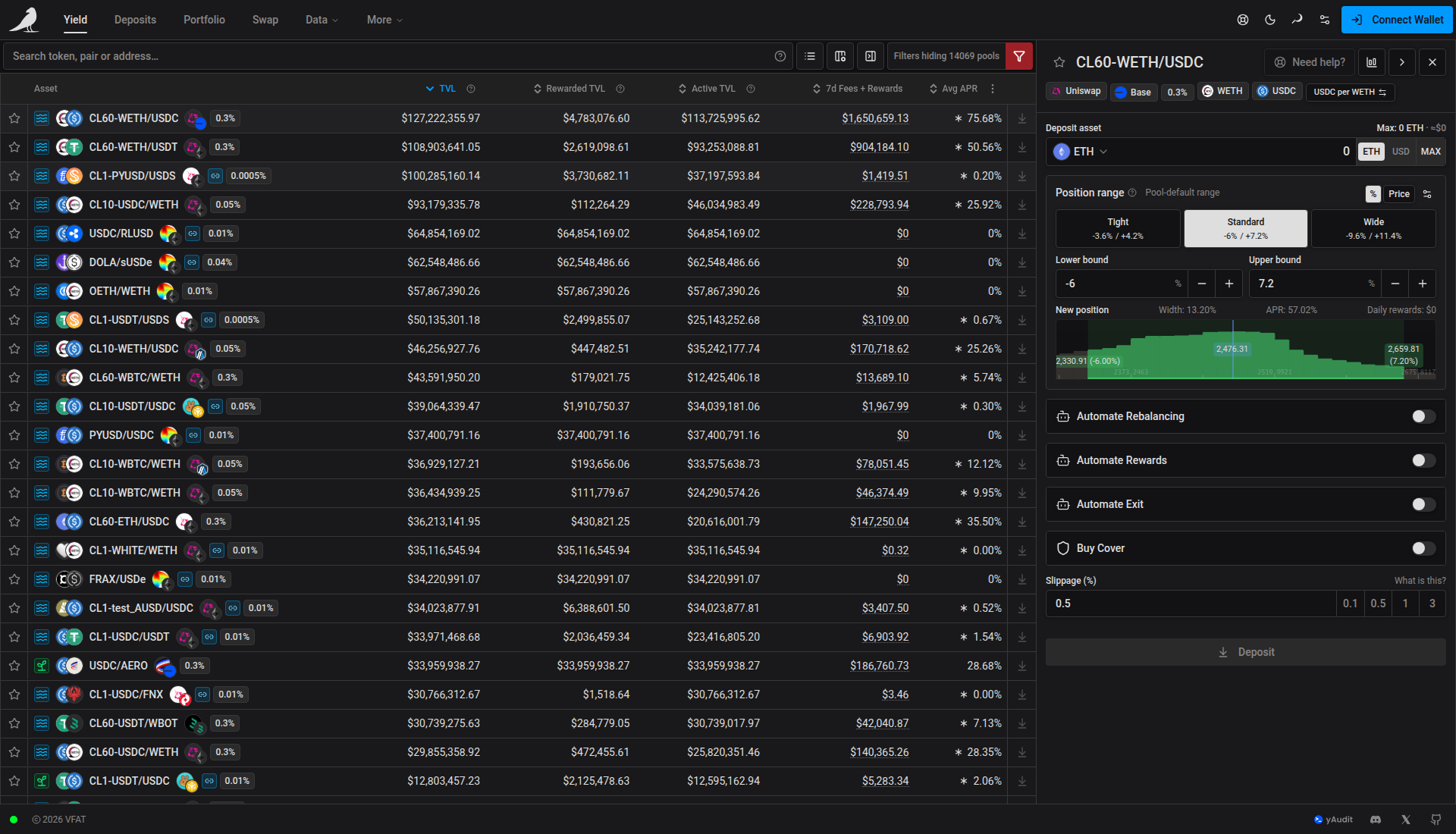
Enable Volume in Customize columns to see one column for the selected period. It is hidden by default. Click its header to sort, or set minimum and maximum dollar amounts for 1d, 7d or 30d volume under Filters. Empty bounds apply no restriction. Column choices and volume filter presets are remembered.
Unavailable volume displays as an empty cell and sorts last in either direction. Applying a volume filter excludes pools whose volume for that window is unavailable; a reported zero remains a valid value.
Enable Fee Tier in Customize columns to compare pool swap-fee percentages. It is hidden by default. Click its header to sort across all matching farms; variable and unavailable fees sort last in either direction. Variable fees show as Variable, with directional rates on hover when available, and unavailable fees display as —.
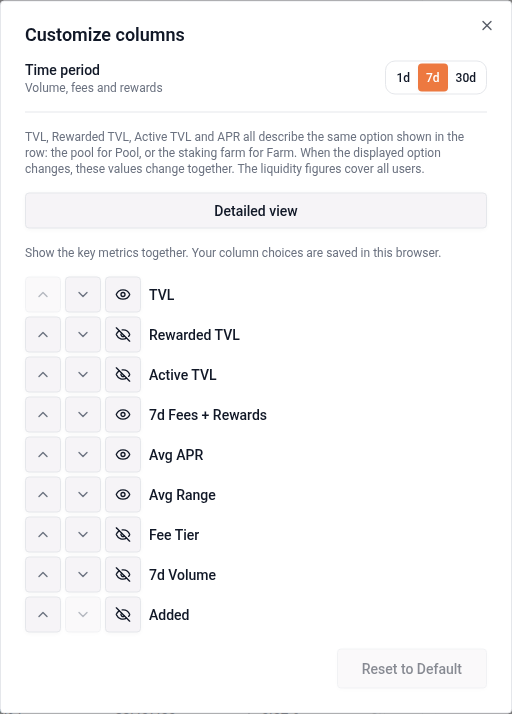
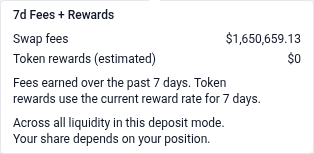
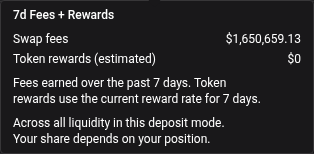
1d / 7d / 30d Fees + Rewards combines swap-fee income and token incentives in one column, including pool-only rows. Hover over the amount, or tap it on a phone, for the breakdown. Fees use the selected period’s history; when that history is unavailable, they use the weekly fee rate and are labeled estimated. Token rewards are estimated from the current rate for the selected duration. Both amounts belong to the displayed deposit mode across all its liquidity, not to your personal position. Sorting and the Fees + Rewards ($) filter use the same combined amount. Saved Fees and Rewards columns are merged while preserving the visibility of either column.
Curve plain-pool fees are temporarily estimated from input trading volume and the recorded base fee, after the protocol’s 50% share. Their fee amounts show ≈, and the APR explanation identifies the estimate. Pool details and deposit-mode cards use the same calculation. Dynamic fees, historical fee changes and yield from the underlying tokens are not included. Missing volume or token prices display as — or Unavailable, rather than zero; a recorded zero still displays as zero. Actual indexed LP fees take precedence when available.
Saved farm and pool favorites are combined automatically. Favorites saved for either UltraSolid deposit mode appear under the same pool. Saved Pools filter presets are carried over to Yield. A star now saves the pool, including all its deposit modes. Position badges count positions across those modes. New favorites are limited to 250 pools; larger existing lists remain available.
Pool lists
Start with Favorites, the only built-in pool list, and add your own named lists using the Manage pool lists toolbar icon. Favorites starts visible by default; choose the default visibility for each new custom list. Existing favorites keep their membership and saved visibility. All lists are saved in this browser and do not affect Deposits or your positions.
The All pools view starts with each list’s saved default visibility and shows every pool matching your search and filters, except members of lists currently hidden. Pools outside any list remain visible. A pool can belong to several lists; membership in any hidden list takes precedence in this view.
Open Filters → Pool lists to see a Show only switch for each group, including Favorites. Switching one on focuses that list and switches the previous one off. A focused list shows all its members, including normally hidden pools, subject to your other search and filters. Switch it off or select All pools to return to All pools with your current visibility settings. The eye button beside each group overrides its visibility in All pools for the current view, without changing the list’s saved default or membership. Select Use list defaults, clear filters, or reset filters to remove these overrides. Filter URLs and saved filter presets can carry overrides; the list definitions stay unchanged.
The Manage pool lists toolbar icon opens group management: create lists, rename or delete custom lists, and add or remove pools. Choose Visible by default or Hidden by default when creating a list. Each list shows its saved status beside its pool count. Open its three-dot menu to change Default visibility, including for Favorites. These defaults are saved in this browser; view-specific filtering controls remain in Filters.
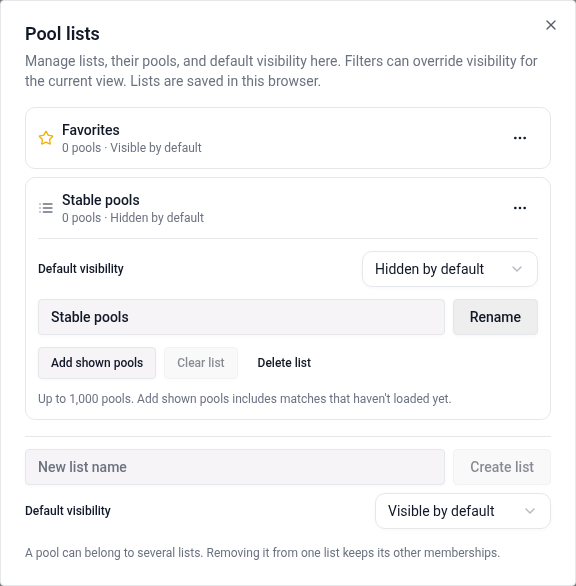
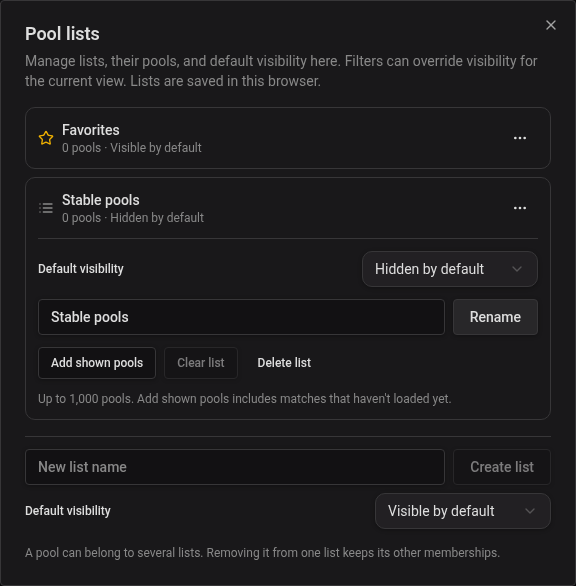
When Favorites is your only list, the table shows the familiar star column. Creating your first custom list replaces that column with Edit pool lists, where you can choose Favorites and any custom lists. The action pane and mobile action sheet use the same control. Membership covers every deposit mode of that pool. Deleting your last custom list restores the star column without changing Favorites. Removing a pool from a list leaves its other memberships intact; Undo in the notification reverses a membership change.
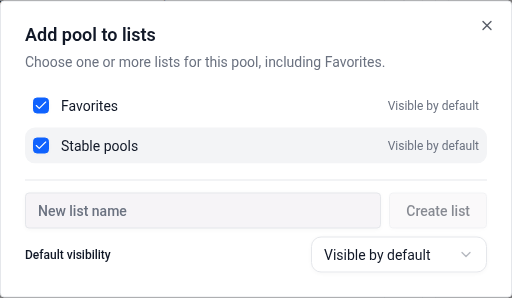
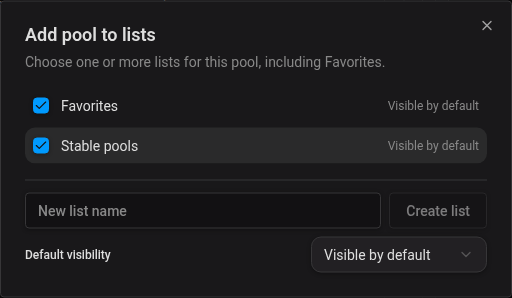
In the Lists manager, open a list’s … menu to:
- Add shown pools: add every pool matching the current view, search and filters, including rows not yet loaded. Existing members do not use additional capacity. If the matches exceed the remaining space, narrow the search or filters first. The list stays unchanged on failure.
- Clear list: remove every member. Notifications for adding or clearing pools include Undo.
- Rename or Delete list: available for custom lists. Deleting a list leaves its pools in any other lists.
You can create up to 20 custom lists. Each holds up to 1,000 pools. New favorites remain limited to 250 pools; larger existing Favorites lists are preserved.
The selected list is included in shared URLs and saved filter presets. Membership and visibility are local: links to Favorites use the recipient’s own favorites, and a custom-list link shows no pools when that list is unavailable in the browser. Clear filters and Reset to default filters return to All pools without changing list membership or default visibility. The Filters hiding… count excludes pools removed by hidden lists in All pools.
If all loaded rows are hidden, the table loads more results automatically. If loading fails, select Retry to continue.
Depositing
The Deposit asset field combines the token picker, amount, token/currency switch, and MAX on one line. Selecting both underlying tokens keeps this same row: the picker stays active, while its shared amount, unit switch, and MAX are greyed out. Use Auto Max or the two token amount inputs below to set the pair’s amounts. Selecting a single token again re-enables the combined row and resets its amount.
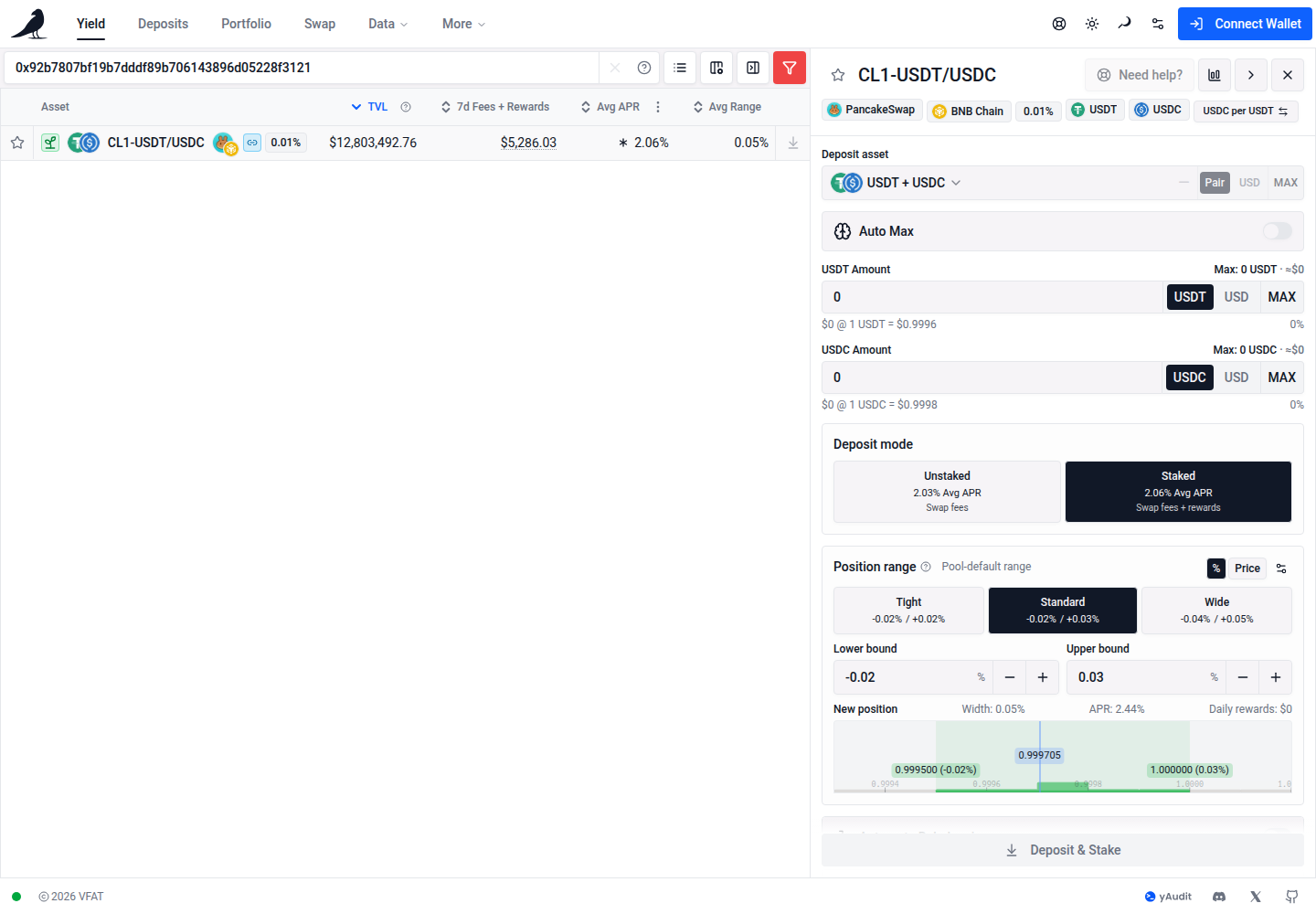
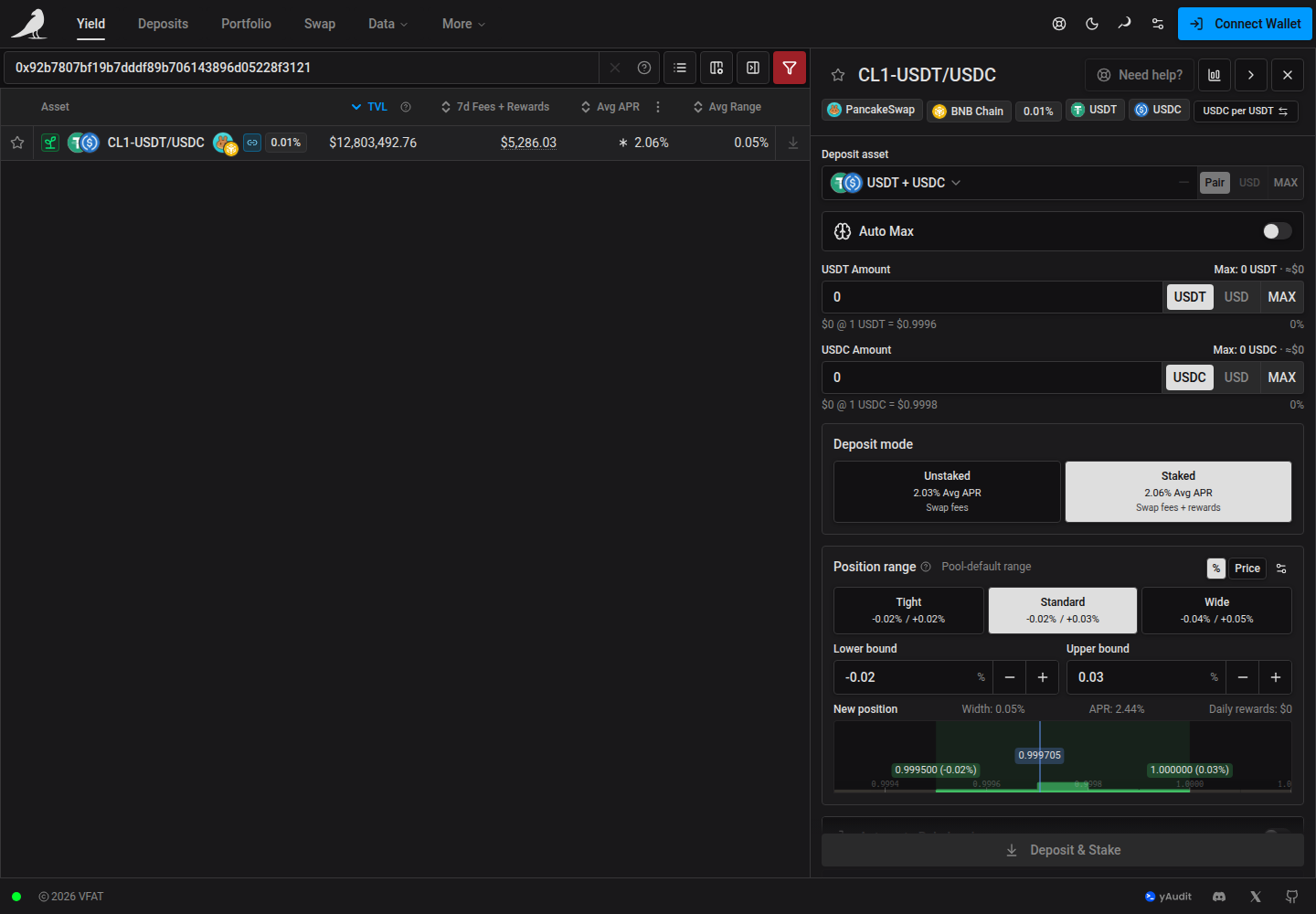
The maximum balance shows token units and an approximate fiat equivalent when a price is available. The token/currency switch changes input units without hiding the balance conversion. Amount feedback and the percentage slider remain available; entering a currency amount also shows its token equivalent. On touch devices, opening the token picker shows the token list without automatically focusing search or opening the keyboard. Tap the search field to type a symbol or paste a token address.
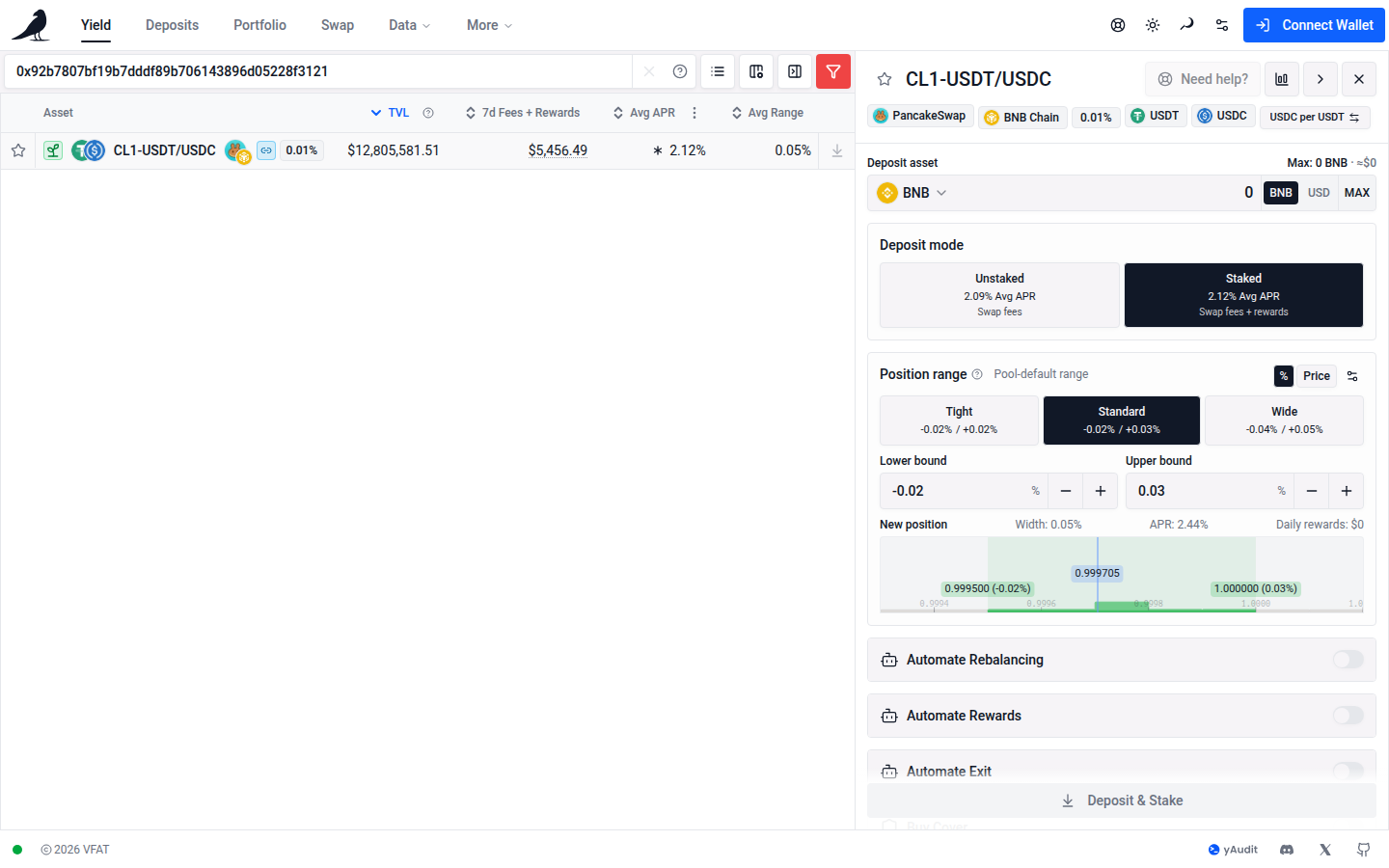
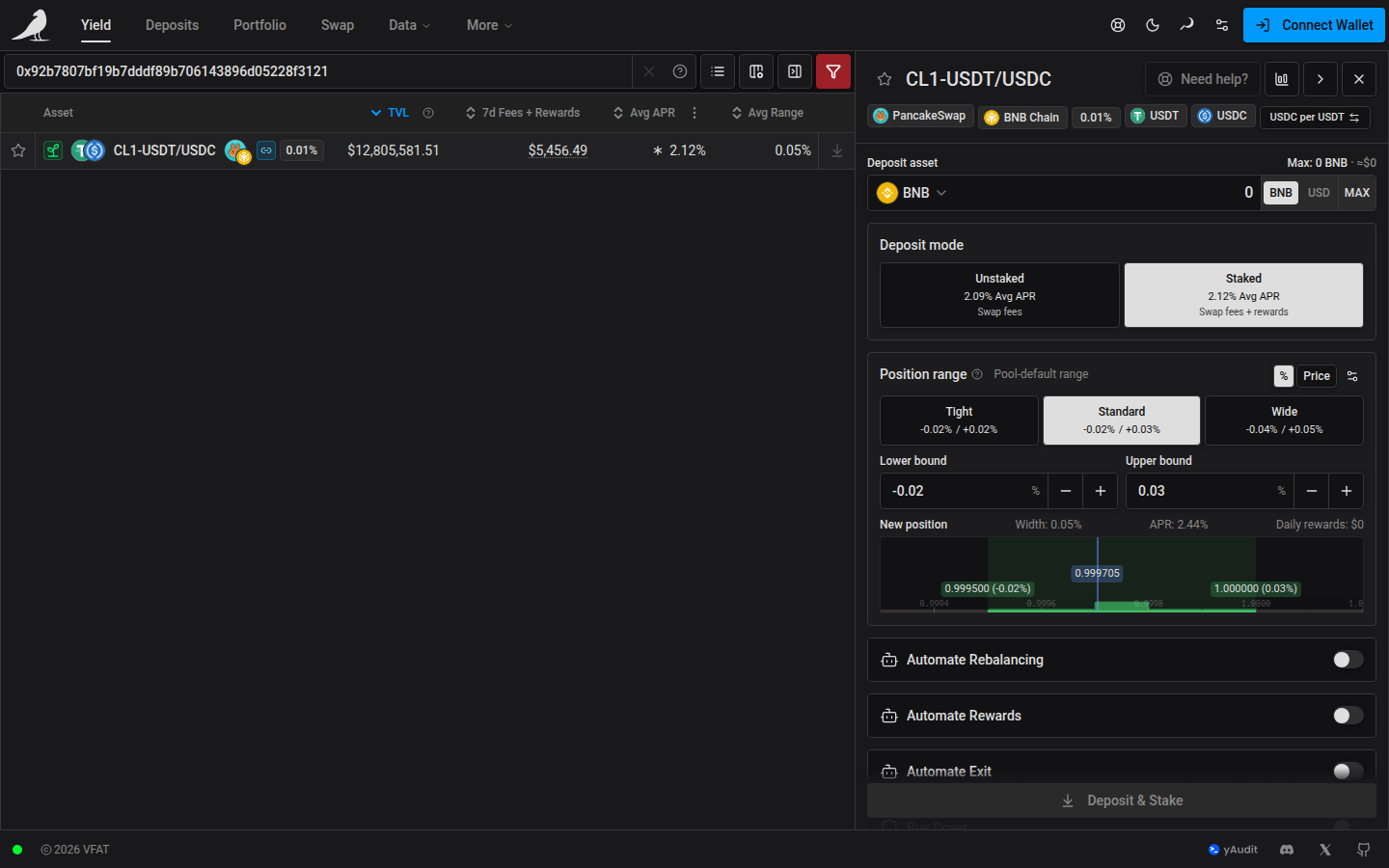
Choose a row as before. When there is more than one way to deposit, Deposit mode cards appear below the deposit asset input, just above Position range. Each card shows that mode’s Avg APR, using the same average APR as the table, followed by its source: Swap fees, Token rewards, or Swap fees + rewards. The source reflects the current APR breakdown, so a farm with zero token rewards can show only swap fees. Zero APR shows No current APR, and missing source data shows Source unavailable. Quick Deposit uses the same labels. The selected card is highlighted like the position range presets:
- Unstaked provides liquidity without staking.
- Staked provides liquidity and stakes in the named farm. This does not imply that fees and token rewards are both earned: the source label beneath the APR shows the income available for that mode.
The action button says Deposit for Unstaked and Deposit & Stake for Staked, including when the farm currently pays zero rewards. Quick Deposit uses the same action labels.
Rows and Quick Deposit start with the available mode with the highest Avg APR that matches your filters. Opening a row or Quick Deposit keeps that mode, and automatic choices update when browse data refreshes. If you explicitly select Staked or Unstaked, your choice stays selected while its metrics refresh. Changing the extra-incentives filter restores the automatic highest-APR choice. Switching modes keeps the form, entered amount, range, and pool details in place. The quote refreshes for the new mode; Deposit stays disabled until that mode is ready. It does not move existing positions. Unavailable modes cannot receive new deposits.
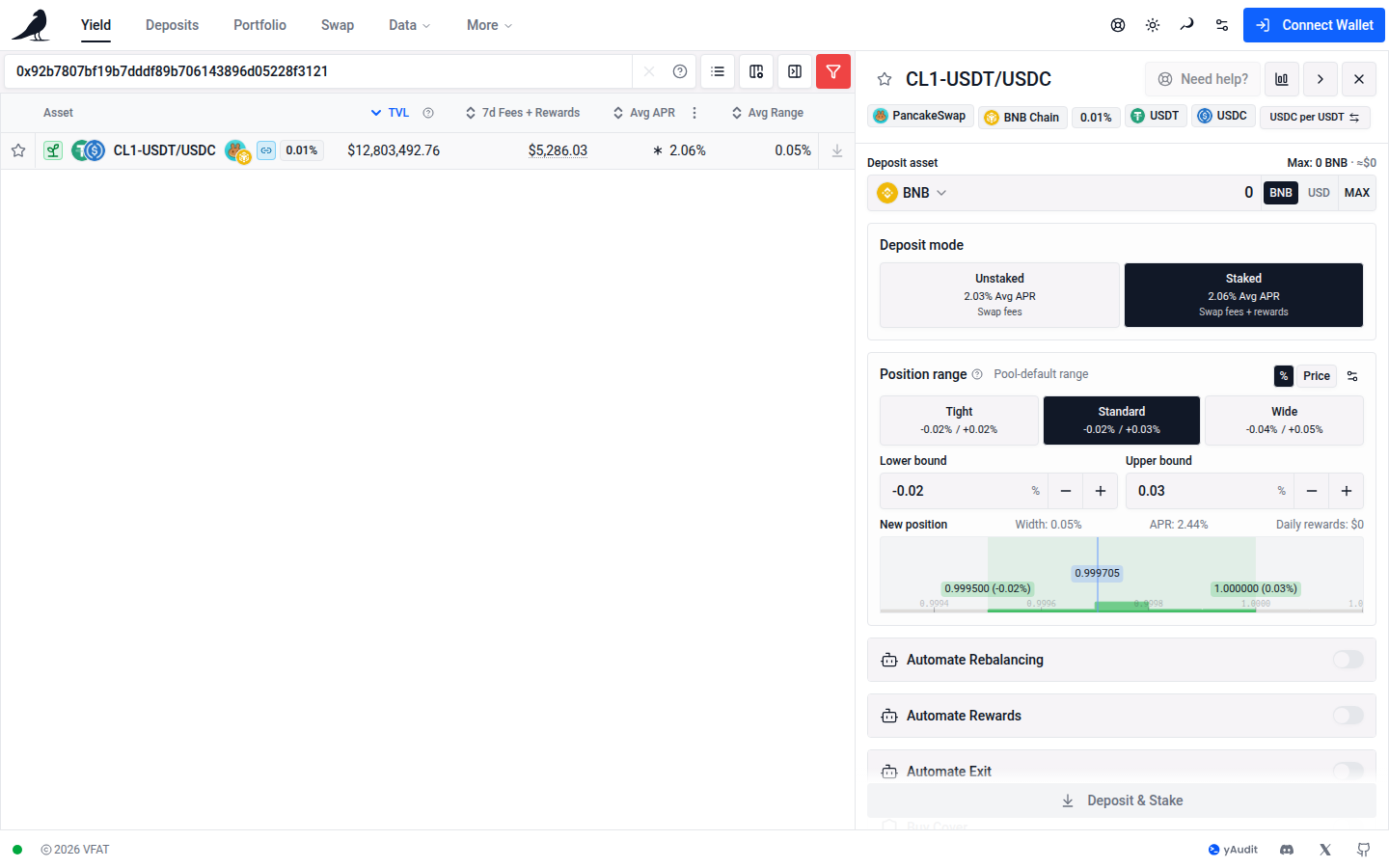
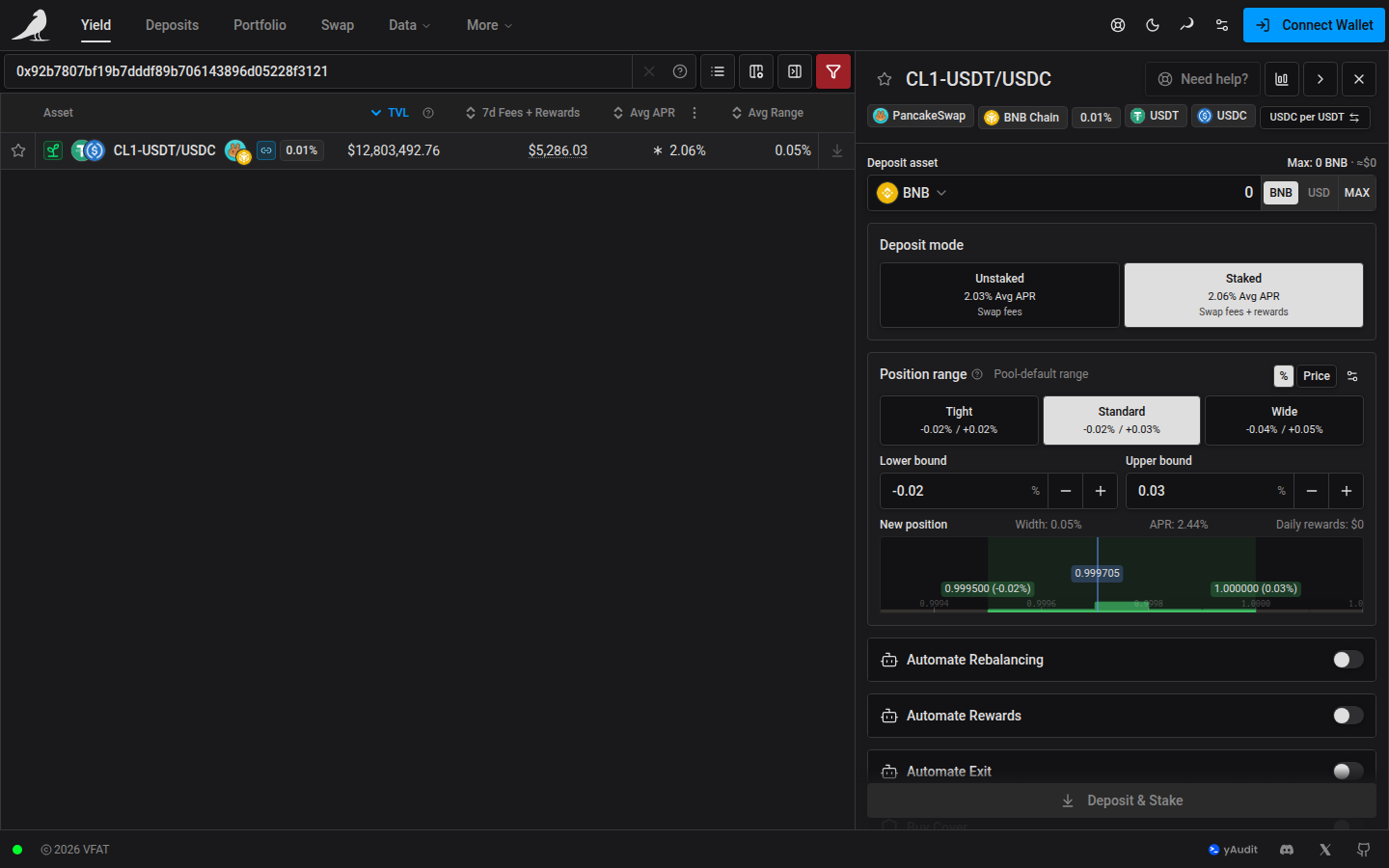
Pools with one or more non-whitelisted tokens show the red shield in the table and an Unlisted pool warning above the deposit form. These pools are listed because of recent trading activity; their prices, APR and automation may be unreliable. Verify the token contracts before depositing.
After connecting your wallet and choosing a pool and mode, use the Deposit button at the end of the row for a one-click quick deposit of a pre-selected ETH (or native token) amount, adjustable from the drop-down. Quick Deposit uses the same cards and average APR comparison. Alternatively, click anywhere on a row to open the full action pane, where you can:
- Deposit any token: it’s automatically routed/swapped into the position
- Deposit both underlying tokens directly, or an existing LP token or NFT position
- Move an existing Sickle position from one farm into another
- Choose a custom price range for concentrated liquidity farms
- Set your slippage tolerance and inspect the swap route taken
- Turn on cover or automation for the position at deposit time
In the Position range header, choose % or Price in the displayed quote token to enter lower and upper boundaries directly. For example, enter 2000 and 2020 USDC per ETH when USDC is the quote token. Bounds round outward to the pool’s allowed prices. Price entry keeps the chosen pool boundaries fixed through market refreshes and transaction quoting. These boundaries are token-to-token prices, including when both tokens are volatile. Tight, Standard and Wide display their bounds in the selected unit, and choosing a preset keeps that unit. In Price mode, a preset fixes the displayed pool boundaries; switching back to % returns to relative bounds. These controls also apply to manual rebalances.
The compact price selector in the widget header shows the current units, such as USDC per WETH. Click it once to switch to the reverse direction. The same selector appears beside the expanded Price chart title; both control price displays and range inputs for the selected pool. Switching units preserves the position’s price boundaries.
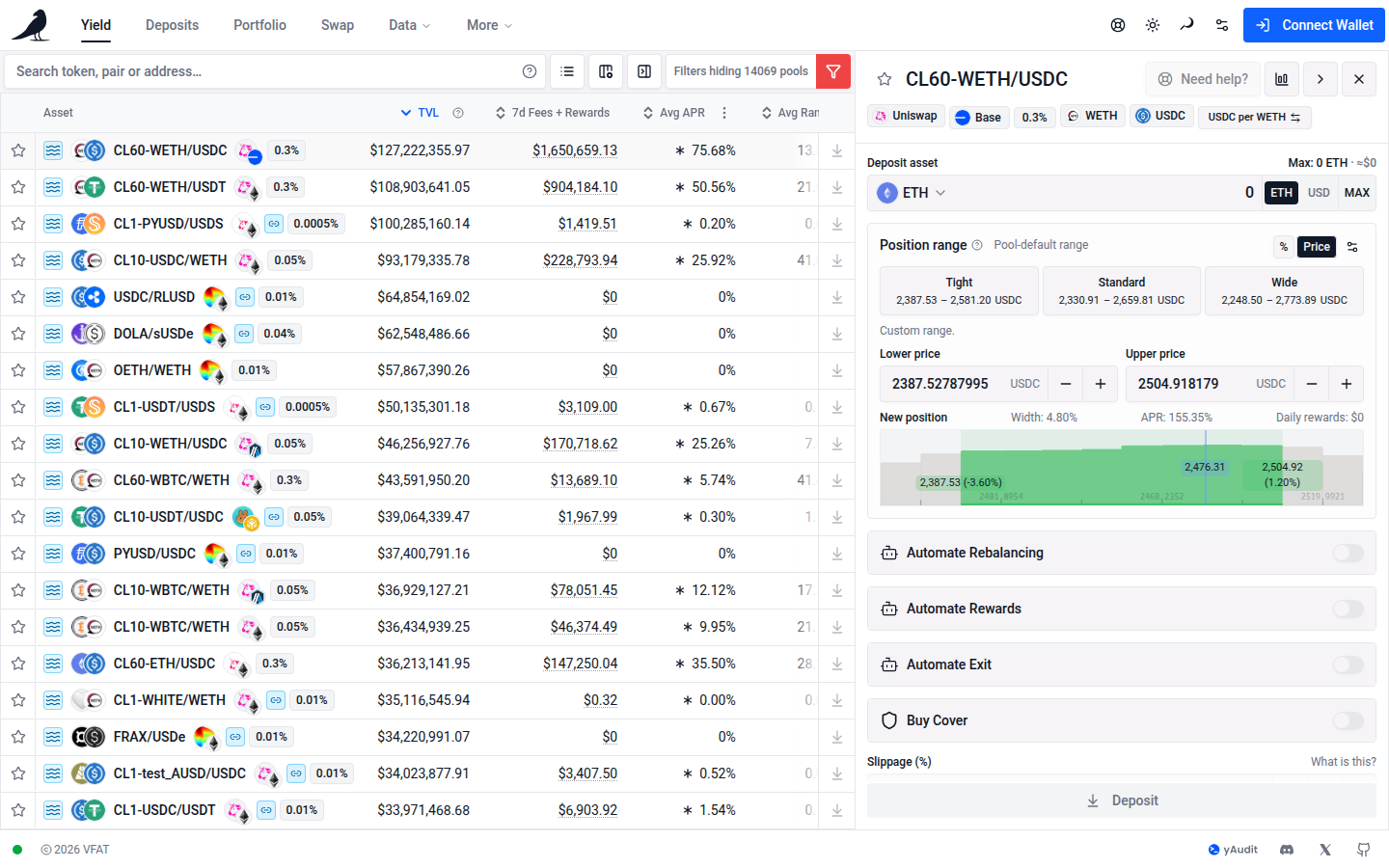
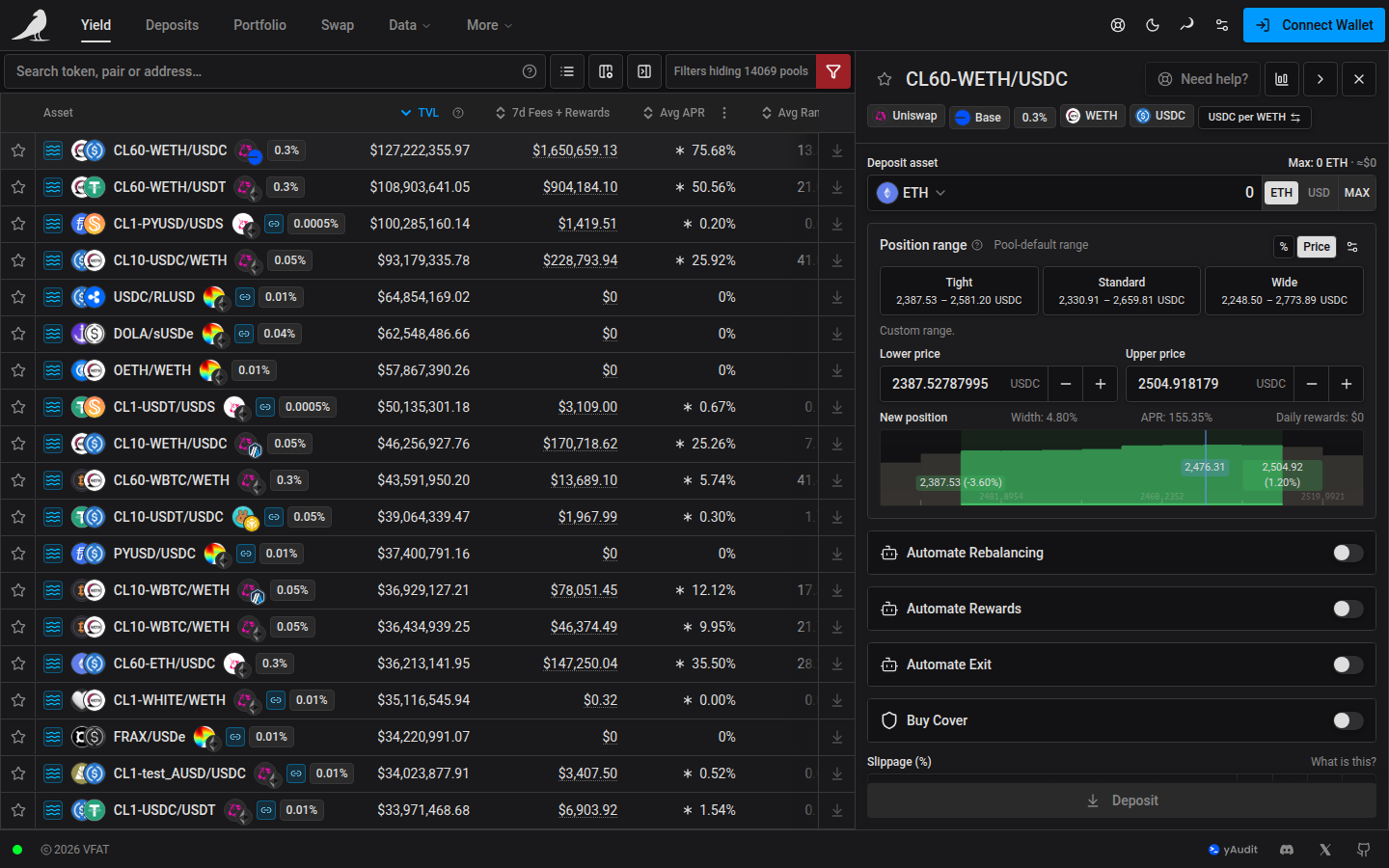
To adjust a Position range bound with the mouse wheel, click into its input and scroll up to increase or down to decrease it. Each adjustment uses the same pool tick increment and limits as the + / − buttons. Wheel adjustments also work in manual rebalances. Hovering over an unfocused input keeps normal page scrolling.
On phones, tap a row to open the action sheet. The same cards appear inside the deposit form.
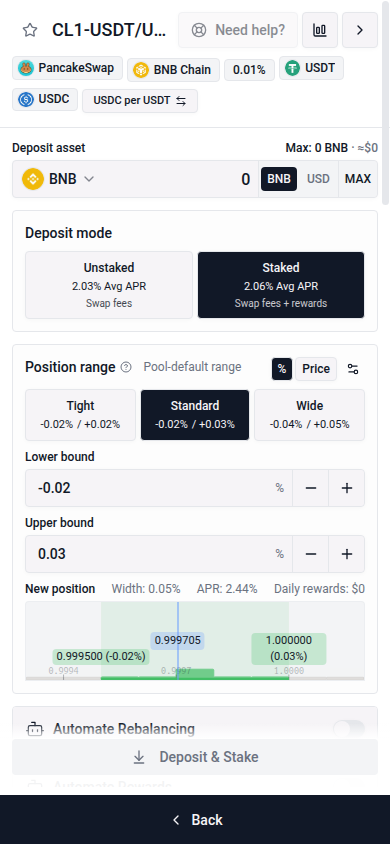
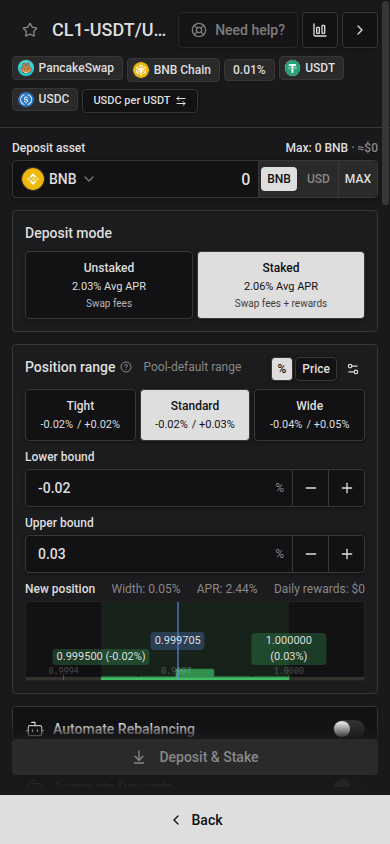
The simulation and route preview appear below the submit buttons, expanded by default when a quote is available. Use the toggle beside the submit button to collapse or reopen the preview. Loading or expanding it keeps the buttons in place. Long forms and previews scroll while the submit controls stay visible. This layout also applies to position and batch actions. You can switch farms without closing the preview first.
On chains where the native currency also has an ERC-20 interface, such as CELO on Celo and USDC on Arc, deposits and increases use native funding and skip that token’s approval transaction. MAX leaves enough native currency in your wallet for the network fee. Other input tokens and fee-token-only chains may still need approval.
After an approval transaction, deposits and increases wait for the approved amount to show on-chain before building the final quote. If it still has not appeared after about 15 seconds, the step stops and says the approval is not confirmed yet. Wait a few seconds, then choose Retry.
Managing open positions
Open positions show up in the Deposits tab, where quick actions let you compound earnings, harvest, or exit back to a token of your choice.
Contract infrastructure
vfat.io Yield is powered by Sickle, a self-custodied contract deployed on each chain the first time you deposit. Sickle executes complex, multi-step actions (swap, add liquidity, stake, and more) in a single transaction via audited Strategy contracts. See Audits for the full list of reports. Smart contracts carry risk regardless of audits, and there is always the underlying risk of the pool you enter.