Automation
Sickle can harvest, compound, rebalance or exit positions on your behalf. Choose the actions that fit your position, then configure when they should run.
Choose an automation
Auto-Harvest
Claim earnings and optionally convert them to a different token.
Auto-Compound
Reinvest earnings using an estimated reward threshold and transaction costs.
Auto-Rebalance
Move a concentrated liquidity position to a new range when its configured price and delay conditions are met.
Auto-Exit
Exit a position when it crosses a price you set. The trigger price is not a guaranteed execution price.
Status and settings
Open a position’s Compound, Harvest, Rebalance, or Withdraw tab to see the corresponding automation status above the action form. The status stays visible while you work, including whether automation is enabled, its latest result, and queue or retry state when available.
Choose Settings beside the status to open its automation settings: a bottom drawer on mobile or a centered modal on desktop. You can review detailed diagnostics and enable, disable, or update the automation there. Changes still require the usual wallet confirmations. Close the modal to return to the action form with your inputs preserved.
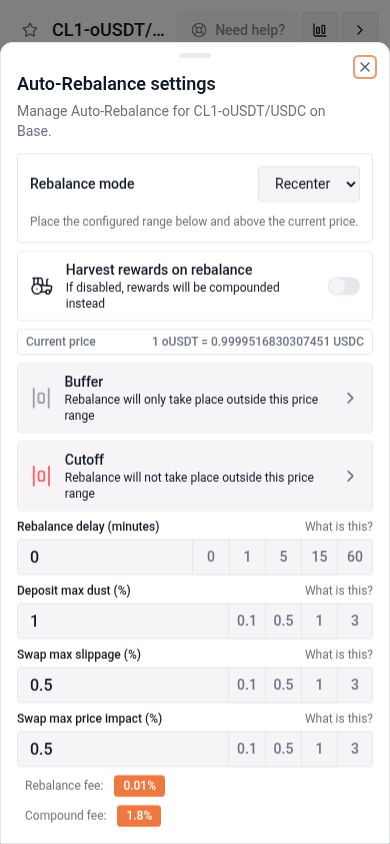
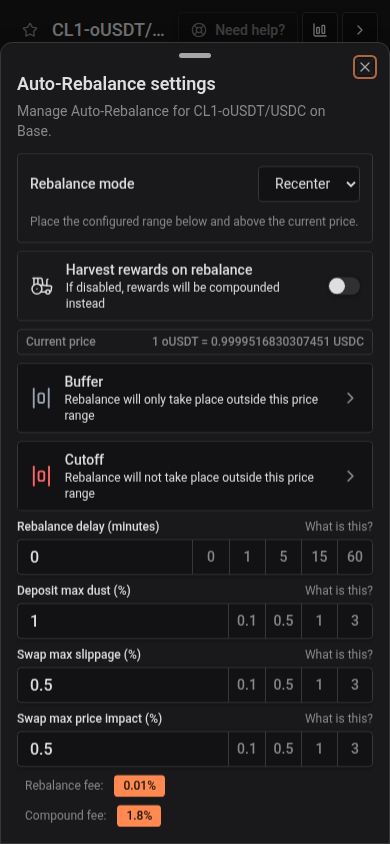
Enable automation
- Enable it for the chain. This authorizes vfat.io’s Automation contract to call these functions on your Sickle on your behalf.
- Configure each position. Turn on the automation types you want to use. Each guide above explains its settings, conditions and fees.
If your Sickle was created before the current automation contract version, you may see a one-time migration prompt before you can enable a new automation type. Follow it to upgrade.
When fees cannot cover gas
Automation failure reasons come from the API’s reported status or last attempt. Position values and gas estimates do not determine a failure reason or override a queued or processing state. When prepaid gas is activated, position-size thresholds are omitted from the status and settings. Small positions can use prepaid gas without a fee-funded size minimum; reported balance or charge-limit failures remain visible.
If the API reports that an automation attempt’s fee could not cover gas, eligible Sickles show a prepaid gas button beside the status above the action form. The detailed status includes an explanation. Choose Enable prepaid gas to open that chain’s Sickle settings and enable prepaid gas if you want it to fund these attempts. Depositing funds alone does not enable prepaid charging; complete the Turn on prepaid gas flow even if your gas account already has a balance. If prepaid gas is already enabled or its settings are still unknown, choose Review gas account to check them first.
If an attempt is blocked by a low prepaid balance, the status shows Gas account balance too low with a Top up gas account button. A per-operation charge limit that is too low gets a separate warning: adding funds alone does not increase that limit. These buttons open the affected chain’s prepaid gas settings above the automation settings; you review and confirm any changes there. Close Sickle settings to return to your open automation settings.
The failure reason stays visible while another check is scheduled. Queue and Next check show the retry timing separately. Compare Last attempt gas cost with Last attempt protocol fee to understand the previous attempt; Current gas estimate may have changed since then.
Small dollar amounts in automation status and threshold messages use subscript notation so a nonzero amount does not round to zero. For example, $0.0₂12 means $0.0012; the subscript counts the zeros before the first significant digit after the decimal point.
Status colors describe the outcome: green for success, amber for funding or settings blockers, red for execution errors, and neutral for ordinary waiting states. The same reason keeps its color across automation types and scheduled retries.
The automation icons on each position row also flag reported issues: amber for blockers and red for execution errors, with a small exclamation marker. Hover over or focus an icon to read the reason without opening the position’s settings. Ordinary waiting states, including rewards below threshold, keep the usual enabled icon. The issue marker clears when a successful result replaces the failure.
Prepaid gas does not bypass your automation triggers, permissions or transaction limits, and funding it does not guarantee an immediate run. See Managing your Sickles for details.