App Settings
The settings button in the header opens App Settings: general preferences that apply across the whole app, separate from Sickle settings (which are per-wallet, per-chain automation configuration).
On mobile, open App settings from the menu. App dialogs, including settings forms and confirmations, open as bottom drawers. Swipe inside longer forms, including Customize columns, to reach the bottom controls. Close a drawer with its close button, by tapping outside, or by dragging the handle down. Desktop dialogs stay centered.
Token pickers, select lists, and dropdown menus open above the settings form. Choose an option or press Escape to close the list and return to the form.
Theme
Use the theme button in the header, or Theme in the mobile menu, to choose System, Light, or Dark. System follows your device’s appearance and updates automatically when it changes. It is the default when no theme preference is saved. Existing saved Light or Dark preferences are kept, and your selection is remembered in this browser.
Inline toggles
- Push Notifications: send notifications to your device
- Show non-whitelisted assets (on by default): include tokens, pools, farms and wallet holdings outside the whitelist. Turn this off to show only whitelisted assets. This preference is saved in your browser and applies across the app. Non-whitelisted items have a red shield warning; hover, focus or tap it for details. Verify contracts and understand the risks before interacting. Whitelist inclusion does not guarantee safety.
- Show liquidity bars: show liquidity-depth bars on concentrated liquidity (CL) pools
- Use full width (off by default): expand the app navigation to fill your screen, regardless of the page’s content width. Also expand Yield, Deposits, Portfolio, Tokens, token liquidity, Lending Markets, Protocols and Stats. Turn this off to keep the navigation and these views centered within a maximum width of 2,000 pixels at the default text size. The footer status indicator stays at the window’s left edge in either layout. The preference applies immediately and is saved in your browser. Content on Home, Docs, Swap, individual farm actions, MCP, Support, Referrals and Status keeps its width limits regardless of this setting.
- HyperEVM block mode (only shown once a wallet is connected): choose between Fast blocks (every transaction confirms in ~1s, capped at 3M gas) or Big blocks (up to 30M gas, but every HyperEVM transaction from this wallet waits ~1 minute). Big blocks require a Hyperliquid Core account for that wallet. If it doesn’t have one yet, the app walks you through creating one by sending a small amount of HYPE; the remainder stays in your Core balance and can be moved back to HyperEVM anytime.
Currencies
Search by currency name or symbol and pick the currency used to display dollar-equivalent values across the app.
RPCs
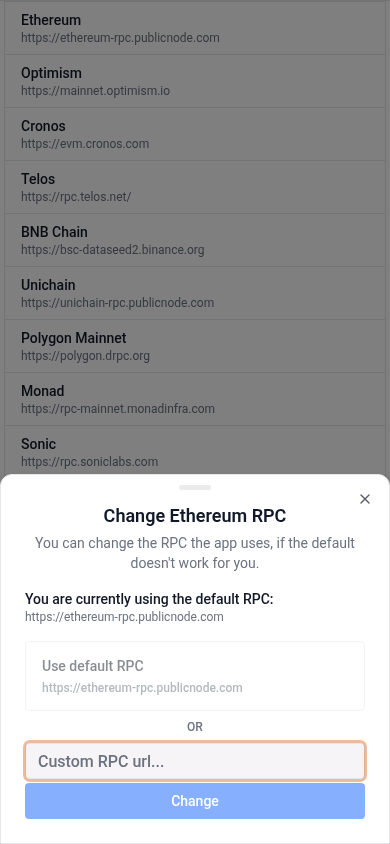
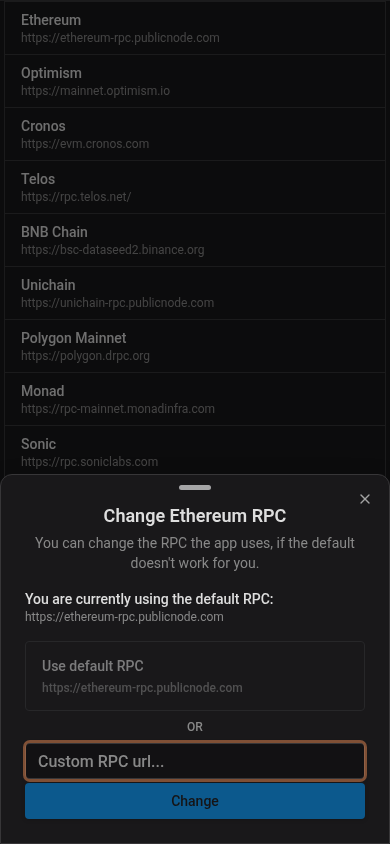
Every supported chain uses a default RPC. Open a chain here to switch it to a custom RPC URL of your own (validated against that chain’s actual chain ID before it’s accepted). Changing a chain’s RPC disconnects your wallet; reconnect to apply the change.
Default Inputs
Defaults used for manual, one-off transactions, not automation (see Automation for that):
- Slippage (%): the default tolerance between a swap’s expected and executed price
- Max Dust (%): the maximum leftover token amount tolerated when manually adding liquidity
- High Dust Limit (%): how much leftover value a failed manual quote can accept from its recovery panel. The default is 50%. When a quote would leave less than this share of the position value unused, you can retry once with a higher max dust. At or above it, you can only retry the quote, or raise this limit first. Leftover tokens are not added to the position and do not earn. This limit does not change automation dust limits.
- Max Price Impact (%): swaps above this threshold prompt a confirmation before you can proceed. A lower setting means more warnings, a higher one means fewer.
From a failed transaction, select Raise high dust limit to open App settings above the transaction popup. Close App settings to return to the transaction and retry.
When token prices are unavailable, swaps selling the same token can still show a combined price-impact percentage weighted by the amounts sold. If swaps sell different tokens and prices are missing, VFAT uses the worst individual swap impact. An impact above your threshold still requires confirmation, which labels the dollar loss estimate as unavailable. If any swap lacks a reliable price-impact percentage, the transaction is blocked.
For manual Sickle actions, quotes at least ten seconds old are simulated again after in-app confirmations, before wallet submission. If an RPC reports a revert, the app checks the other configured RPCs. As soon as one succeeds, the transaction can proceed to wallet confirmation without waiting for slower RPCs. If none succeeds within the check’s time limit, or your wallet changes during the check, submission stops; retry to request and review a fresh quote. If the initial check times out or the RPCs cannot complete it without reporting a revert, the transaction can proceed to wallet confirmation. This check preserves the quoted route and minimum outputs. Ten seconds is only a trigger for an extra check: prices can still change during wallet confirmation or before mining, including for very narrow liquidity ranges.
Deposit Automation Defaults
Pre-filled defaults for when you turn on automation while opening a new position. These aren’t global limits, just the starting values shown at deposit time:
- Auto-Rebalance: enable by default for NFT deposits, with its own reward handling (compound vs. harvest) and dust/slippage/price-impact limits
- Automate Rewards: enable auto-harvest/auto-compound by default on new deposits