Deposits View
The Deposits tab lists every Sickle position you currently hold, whether opened through Yield or migrated in.
If some holdings could not be loaded, a banner warns that balances and totals may be incomplete. Click it to see the affected chains. The details close when a complete refresh succeeds and stay closed if partial results recur; click the banner again to reopen them.
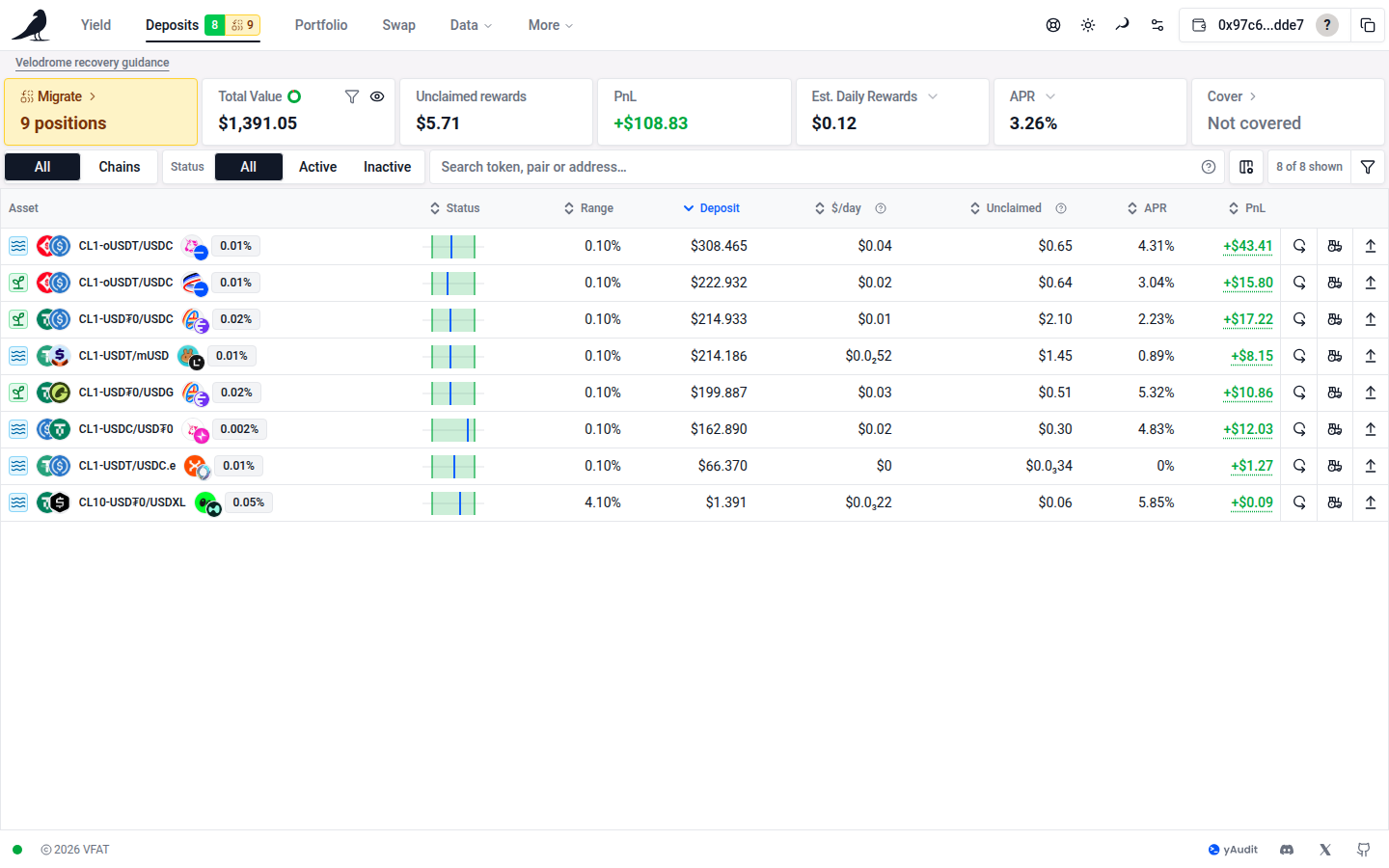
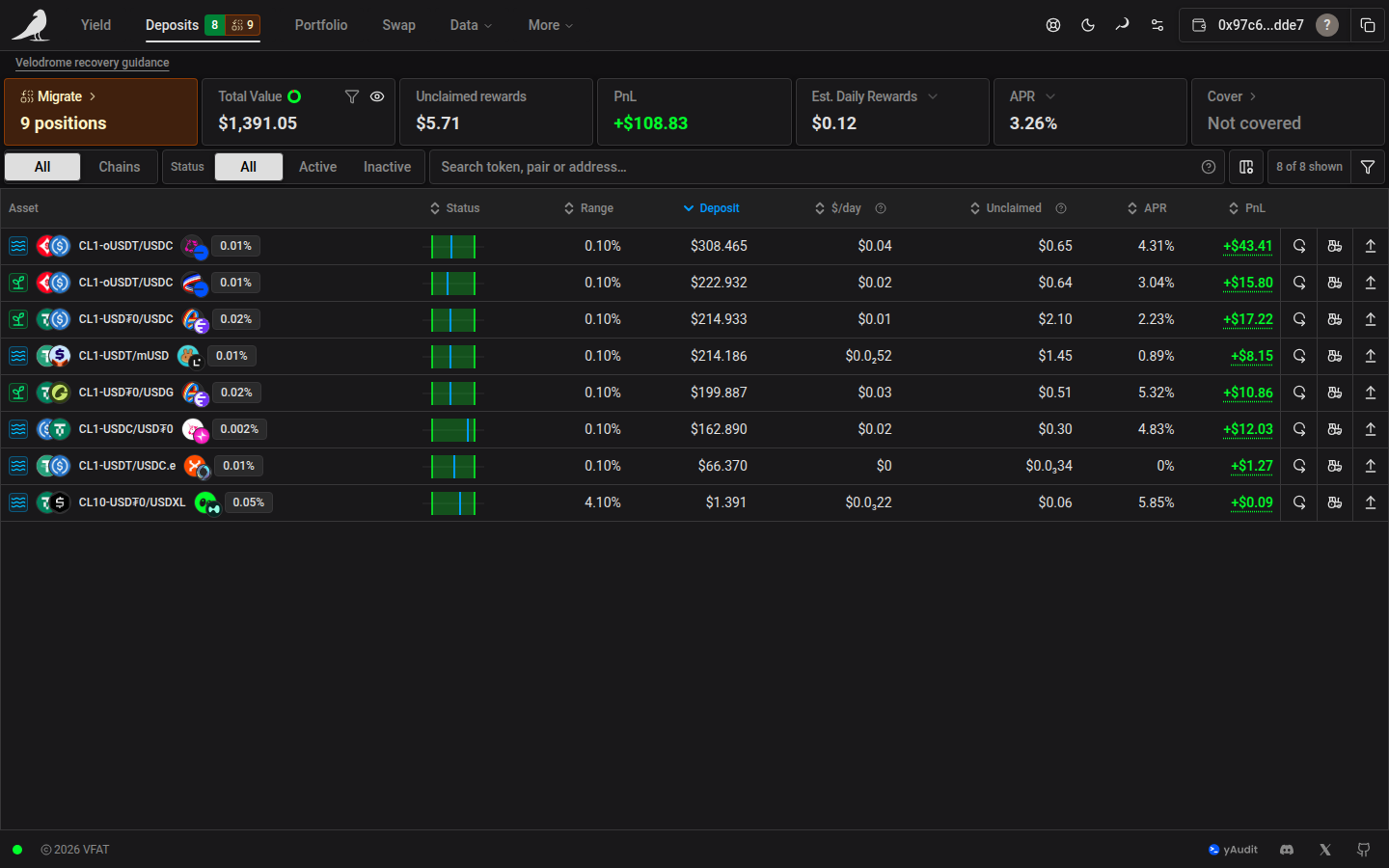
KPIs and period toggles
The top of the page shows portfolio-wide KPIs for all your open positions: Total Value, Unclaimed rewards, PnL, estimated periodic rewards, APR, Cover, and a Rewards widget for chain-specific reward programs like Katana pre-staking that appears when applicable. The Rewards widget remains available when pre-staking can be enabled or disabled, even if both reward balances are zero. Two of these are dropdowns that change how they’re calculated:
- Rewards period: Hourly, Daily, Weekly, Monthly or Yearly
- APR period: Daily (DPR), Weekly (WPR) or annualized (APR)
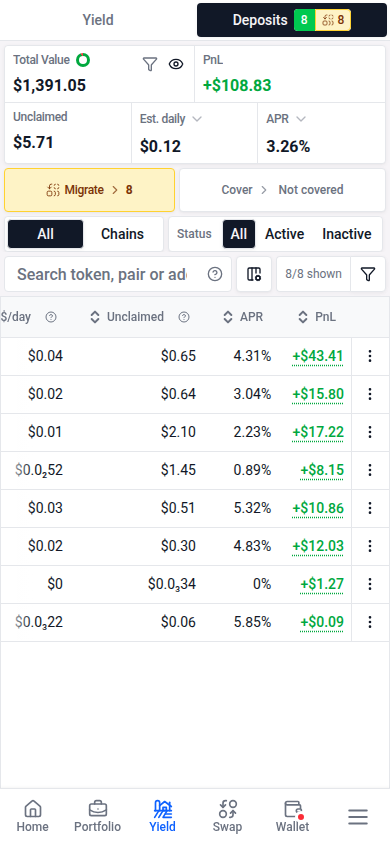
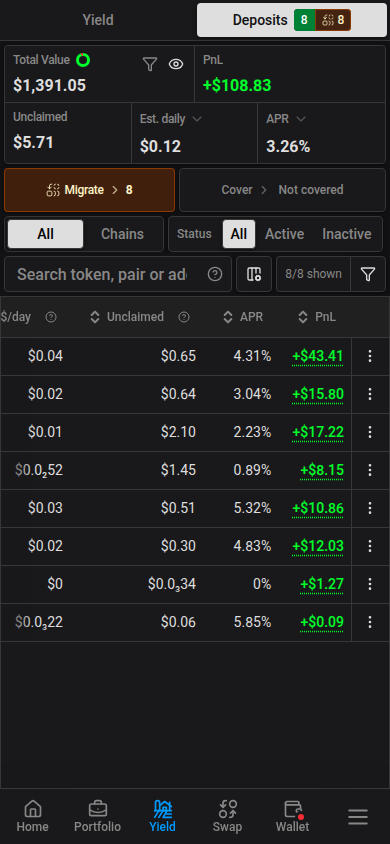
On phones, the metrics share one compact card: Total Value and PnL sit above Unclaimed rewards, estimated earnings, and APR. The period dropdowns, balance privacy control, and value/PnL details remain available. Migration, Cover, and Rewards use compact buttons below the card; tap them for their full details and actions. Wider screens keep separate KPI cards.
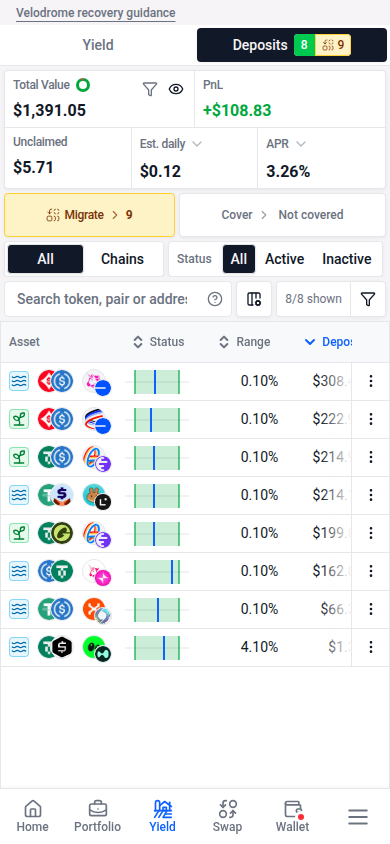
Use the Hide balances eye button to replace amounts with solid redaction bars in the summary and table. The layout stays in place, and percentages remain readable. Hidden amounts are also concealed in hover titles and from screen readers. Tap the eye again to reveal them.
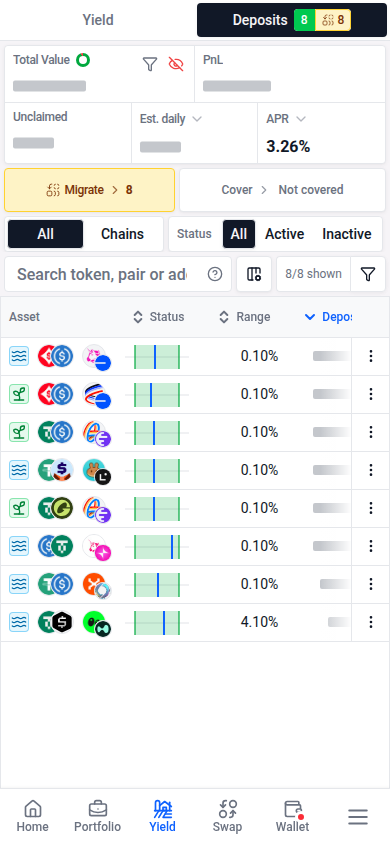
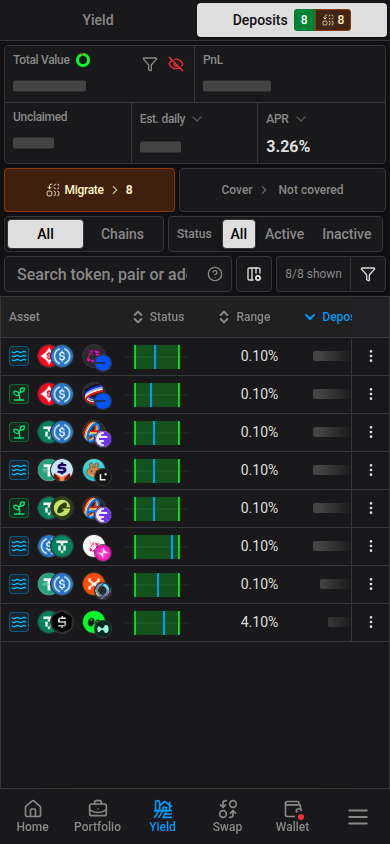
By default, the KPIs show all positions even when you switch to Active or Inactive, search, or apply filters. Use the Apply filters to KPIs funnel button beside Hide balances to switch Total Value, PnL, Unclaimed rewards, estimated earnings, and APR to the matching positions. The button is highlighted while enabled, and your choice is saved in this browser. Switch it off to return to portfolio-wide totals. Migration, Cover, and Rewards retain their own scope.
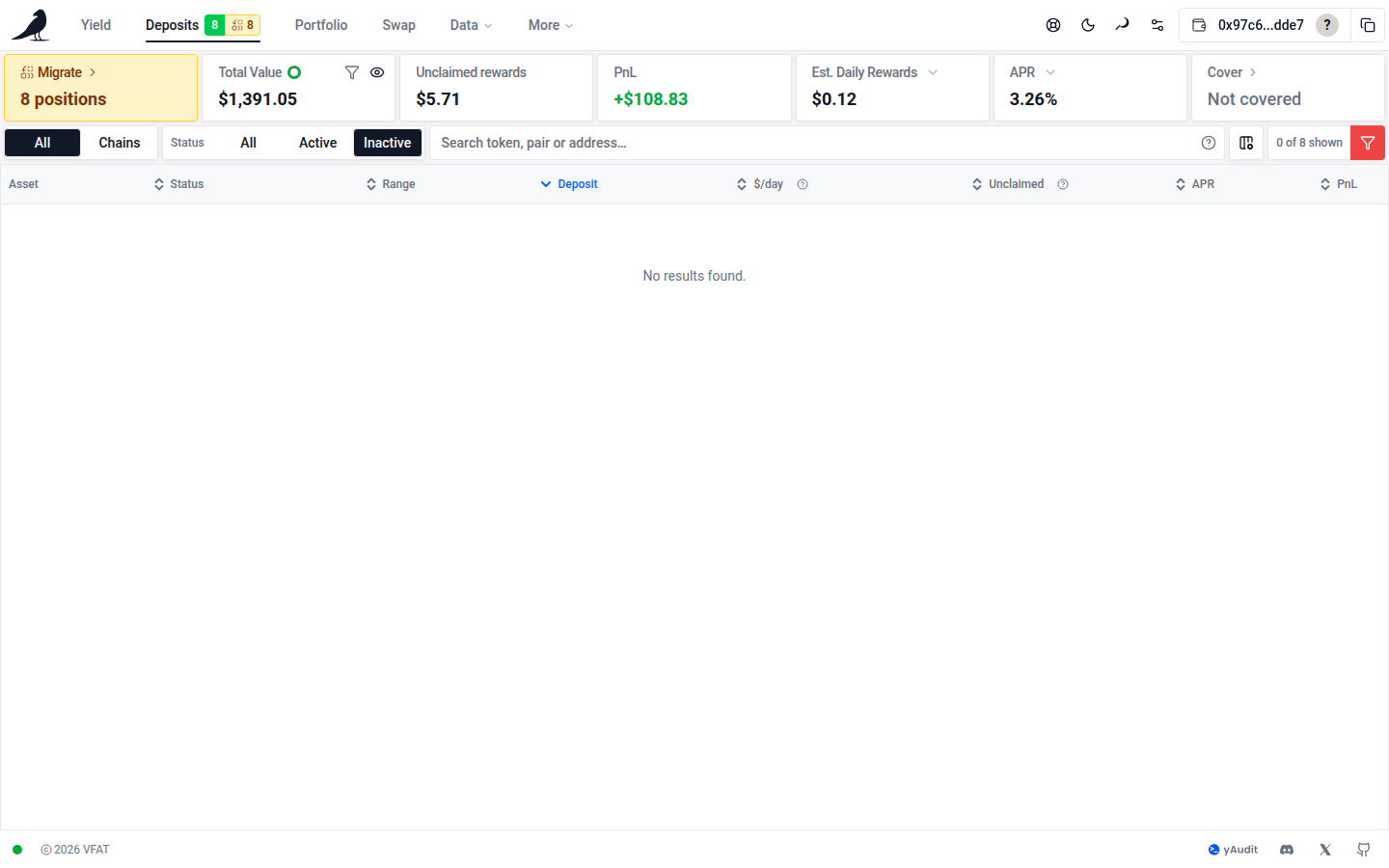
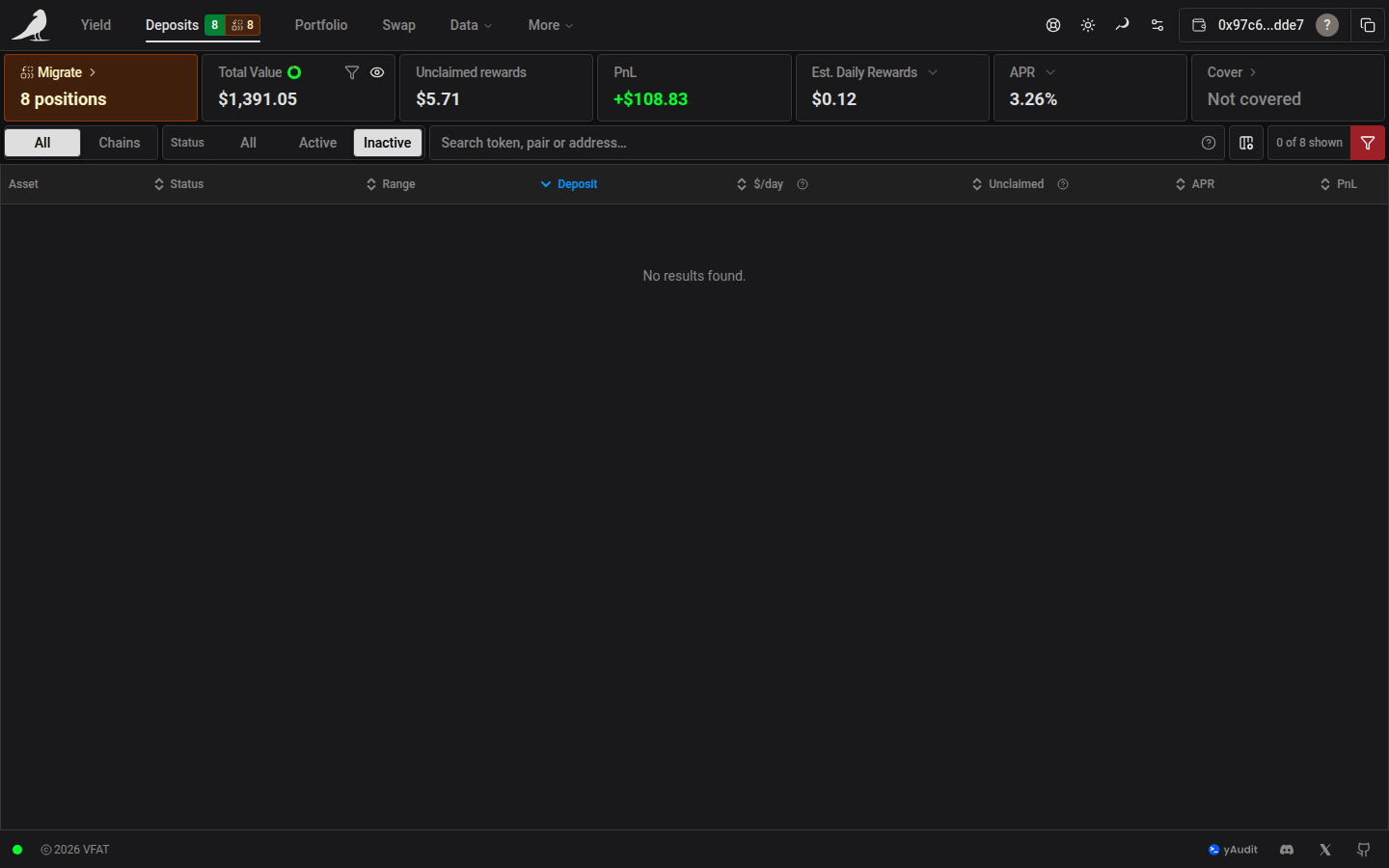
When KPI filters exclude positions, Unclaimed (on-chain) shows only their on-chain rewards; chain-wide off-chain rewards cannot be attributed to individual filtered positions. Off-chain rewards are included when all positions are shown. Inactive positions can have zero estimated daily earnings while still holding unclaimed rewards. Sorting changes row order, not these totals.
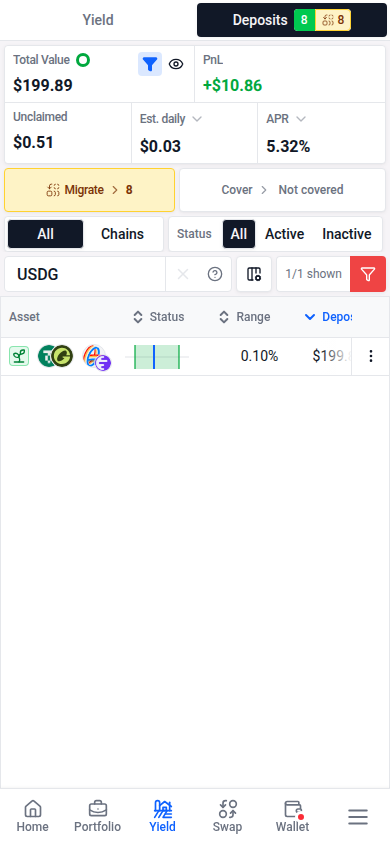
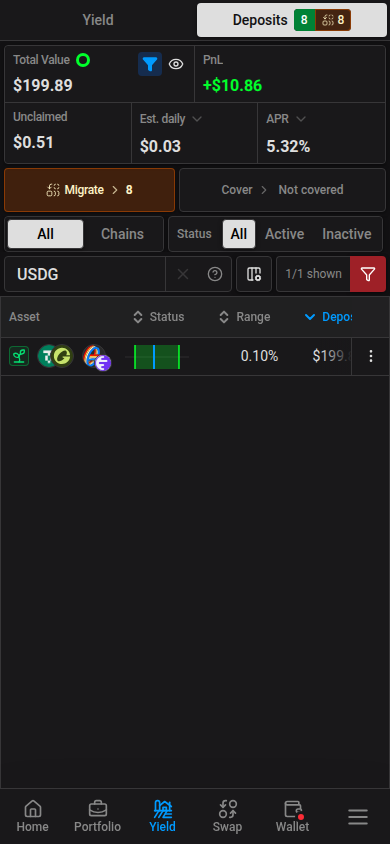
Monetary KPIs keep two decimal places for USD and EUR amounts of at least $1 or €1. Smaller amounts and other currencies retain their existing precision.
PnL includes positions with a numeric lifetime net PnL, even when their performance breakdown is incomplete. Hover over the card, or tap it on a phone, to see how many positions are included and whether their breakdowns are incomplete. Total Value also shows a ring indicating the share earning yield; open its details for the in-range and out-of-range amounts.
The table toolbar shows N of M shown, including pending rows. M is the number matching your search before the other filters; select the count to clear filters when positions are hidden. The navigation badges continue to show portfolio-wide active and inactive counts.
The estimated rewards column uses your selected currency and period, such as $/hour or €/day. Unclaimed contains earned rewards awaiting collection. Open the header explanations for their full meanings. Pending position badges use compact icons; hover, focus, or tap an icon for its status. A clock marks delayed updates.
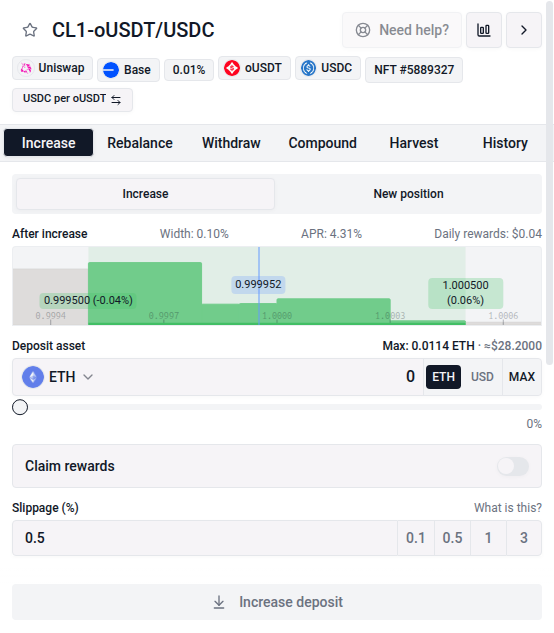
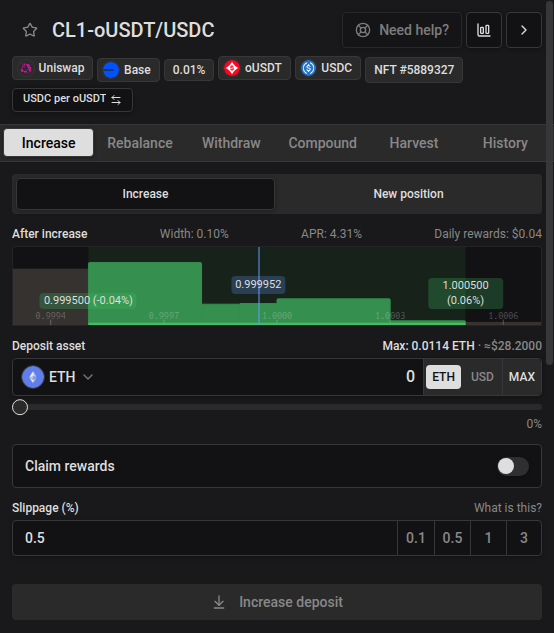
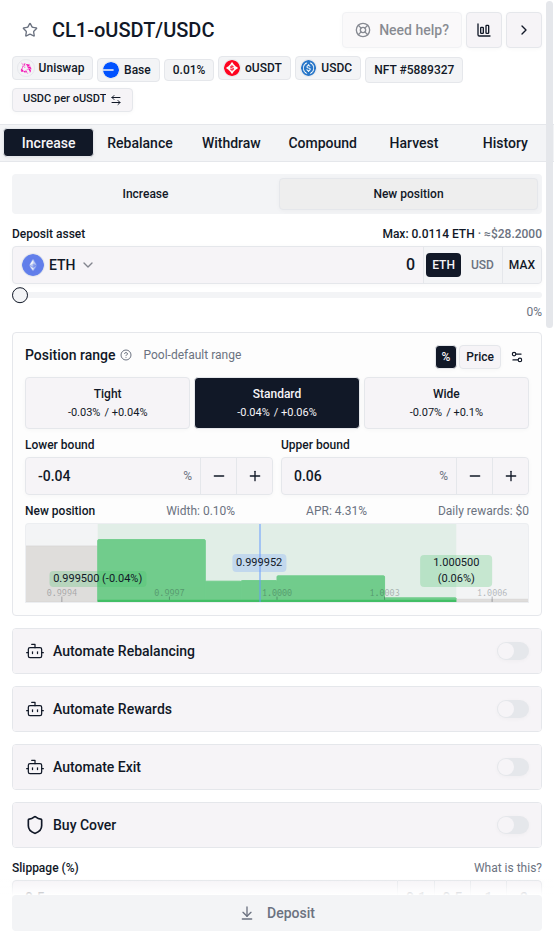
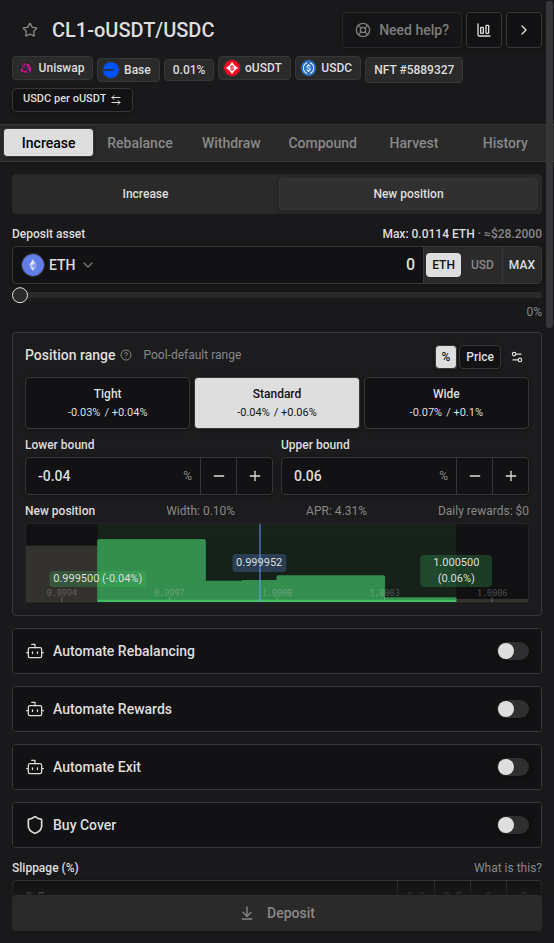
In a concentrated-liquidity position’s Increase tab, use the Increase / New position toggle to choose where to deposit. Increase is selected by default and adds to the existing position. New position opens the deposit form inside the widget so you can choose a separate range and automation settings in the same pool and deposit mode. Selecting another position resets the toggle to Increase. More details continues to open the existing position.
All vs. Chains
Similar to Portfolio’s Overview/Chains toggle, Deposits can be viewed as a flat table of every position (“All”) or grouped by chain (“Chains”) for a per-network breakdown.
Each chain’s APR is weighted by the current USD value of its positions, matching the portfolio summary: add up each position’s value multiplied by its APR, then divide by the chain’s total deposited value. Positions earning 0% still count toward that total. For example, $9,000 at 10% and $1,000 at 100% produce a chain APR of 19%. The APR period dropdown also applies to chain totals.
On wide screens, the first position in the All view is selected automatically and, when the widget is enabled, its action pane opens while the row stays collapsed. Click the selected row to expand its inline details.
Use the Hide widget icon in the desktop table toolbar, or Close in a position or chain action pane, to give the table the full width. Clicking rows keeps the widget hidden until you select the Show widget icon, which restores the current selection and normal row-following behavior. The choice is saved in this browser and shared with Yield. On smaller screens, row selections still open the action sheet and Back returns to the table.
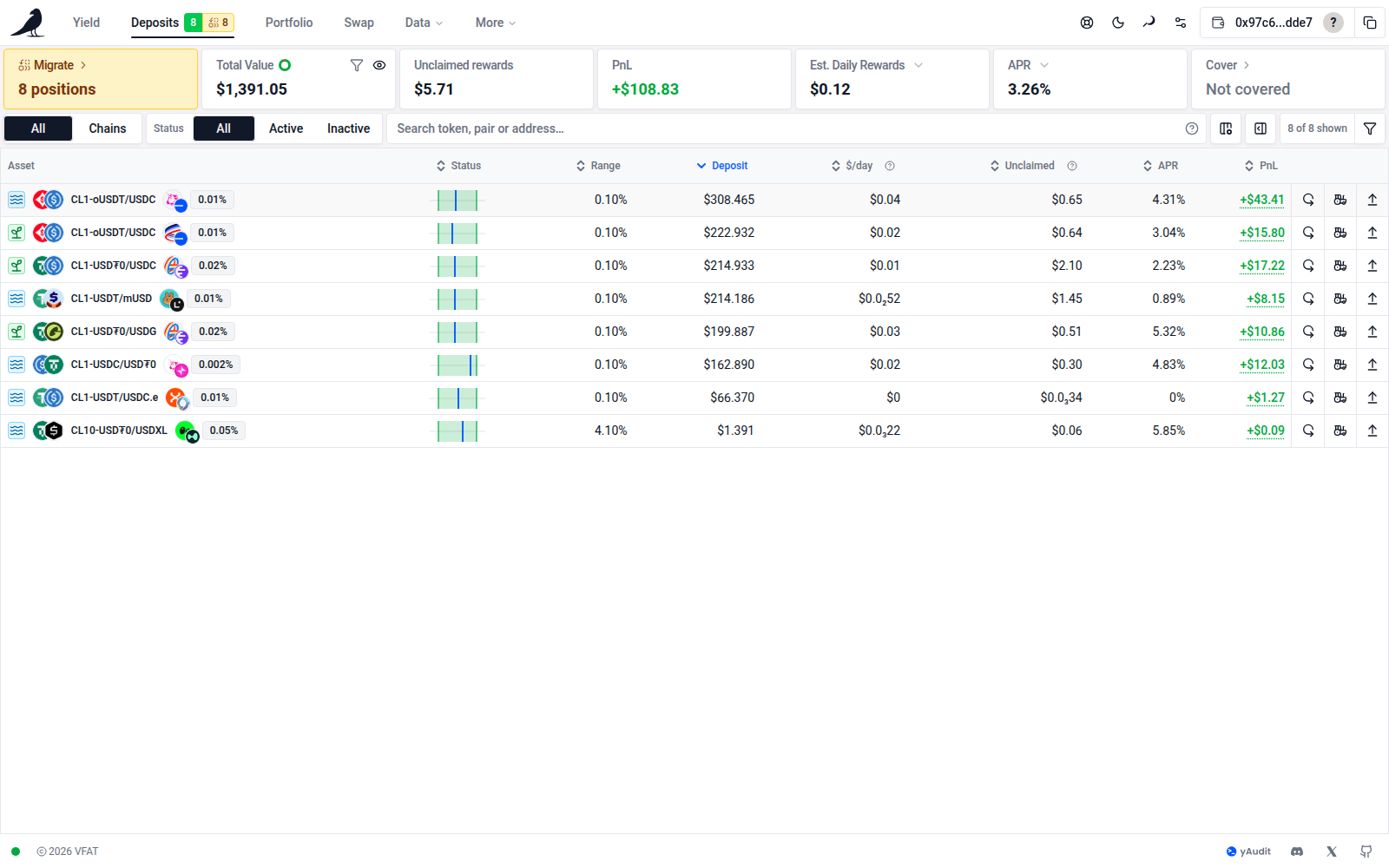
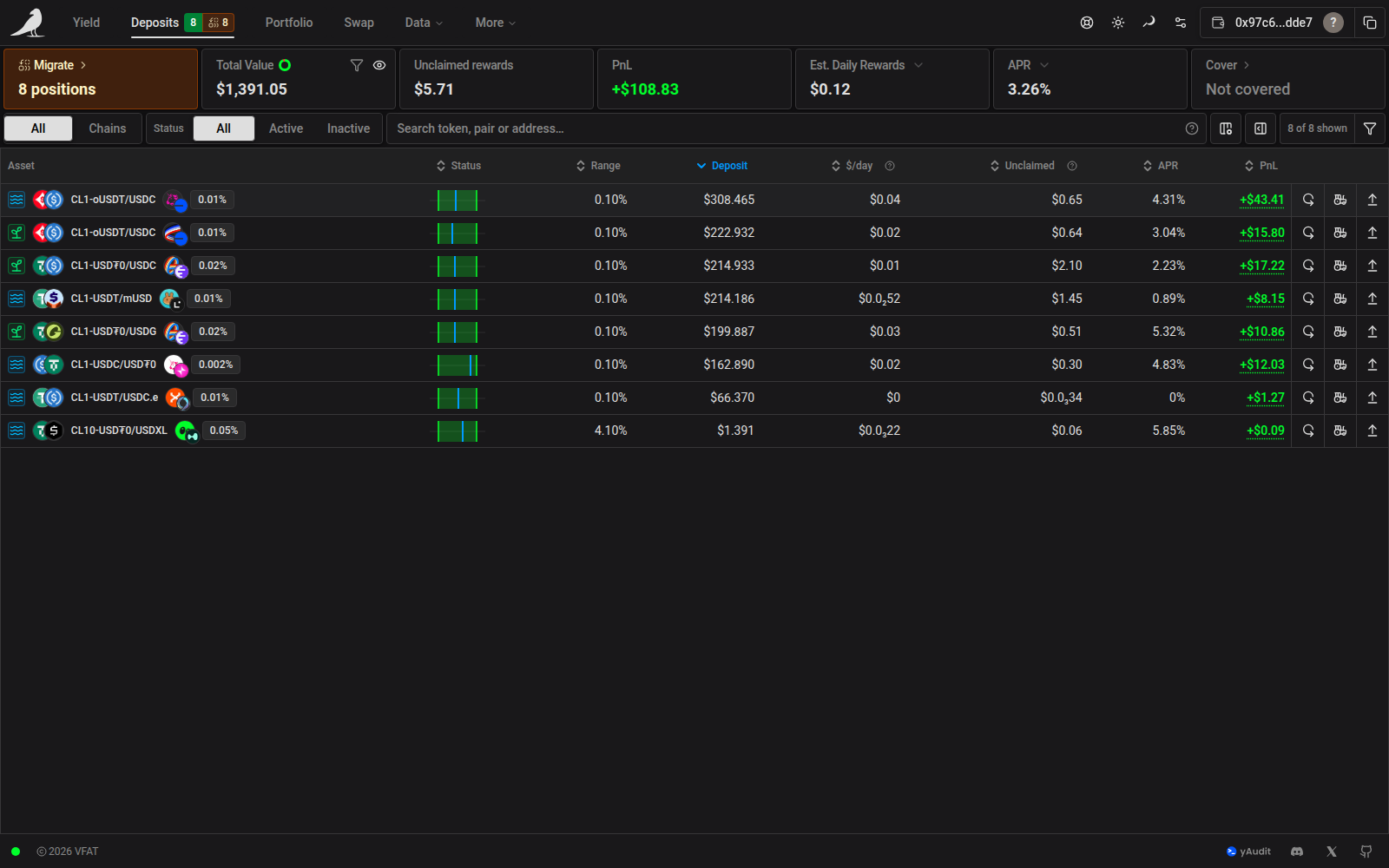
Position rows use the same deposit-mode badges as Yield: a green sprout means staked in a farm, and blue waves mean unstaked in a pool. The icon and color depend on the deposit mode. Hover, focus, or tap the badge to check whether extra token rewards are available in any pool mode, including on-chain and off-chain rewards. If pool-wide rewards data is unavailable, the explanation says availability is unknown.
Fables range IDs are available in position details. They are omitted from table rows, including pending positions, to keep the columns compact.
The table scrolls within the page, and its action column stays visible when you scroll sideways. On phones, open the three-dot Position actions menu to rebalance, compound, harvest or exit. The menu stays open while an action is prepared and closes once the transaction is queued.
On phones, swipe across the table to reach the additional columns you selected in Customize columns.
Each position has one Auto-Compound icon showing its role: compound to self, send to another position, receive from one other position, or receive from multiple positions. Self-compounding uses a loop arrow. On the directional icons, the dot represents the current position and arrows show reward direction. Hover or focus for the role and incoming source count, which excludes the position itself. Click a multi-compound icon to open its Compound tab, then Settings for destination and source details. The destination’s History tab shows completed runs.
Filtering, search and columns
Search by token symbol, pair, concentrated-liquidity label, farm address, or pool ID. Open Search help for examples. Symbol matches are partial and ignore case: ETH can also match WETH. Use ETH/USDC for a pair in either order; spaces match either term (ETH USDC), and a minus excludes a term (ETH -wstETH).
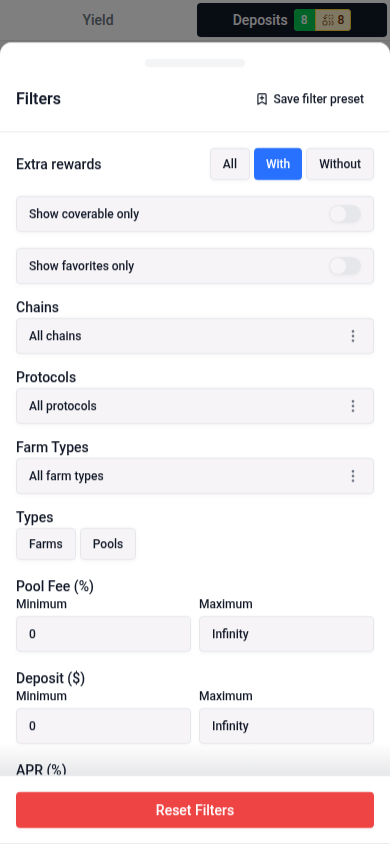
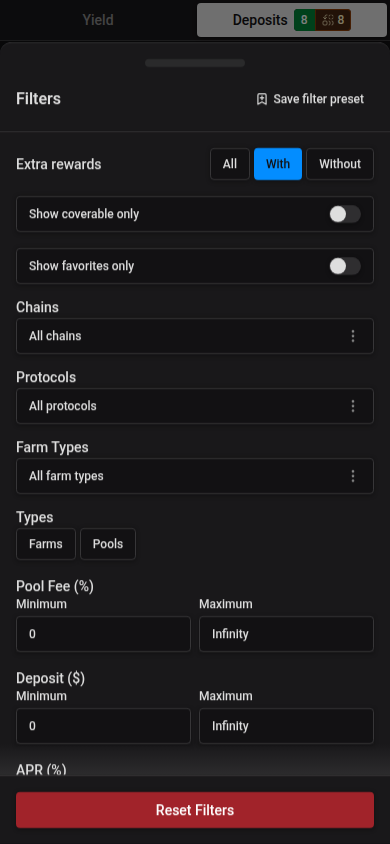
The toolbar above the table has an All/Active/Inactive status filter, a search box, a column selector (choose which columns are shown), and a filters dialog. The filters dialog covers chain, protocol, farm type, position type (farms/pools), favorites, whether cover is available, automation type (auto-rebalance, auto-compound, auto-harvest, each with an “only” or “hide” toggle), and numeric thresholds for pool fee, deposit size, APR, daily rewards, range width and amount earned. Filter combinations can be saved as reusable presets.
Choose Filters → Extra rewards → With to show positions whose current deposit mode has an available farm or positive extra rewards. Without shows the remaining positions, and All removes this restriction. Available farms qualify even when emissions are currently zero; pool positions qualify when they have positive reward emissions or reward APR. Swap fees, points alone, and unavailable farms do not qualify. The selection is included in shared URLs and saved presets; Reset Filters restores All.
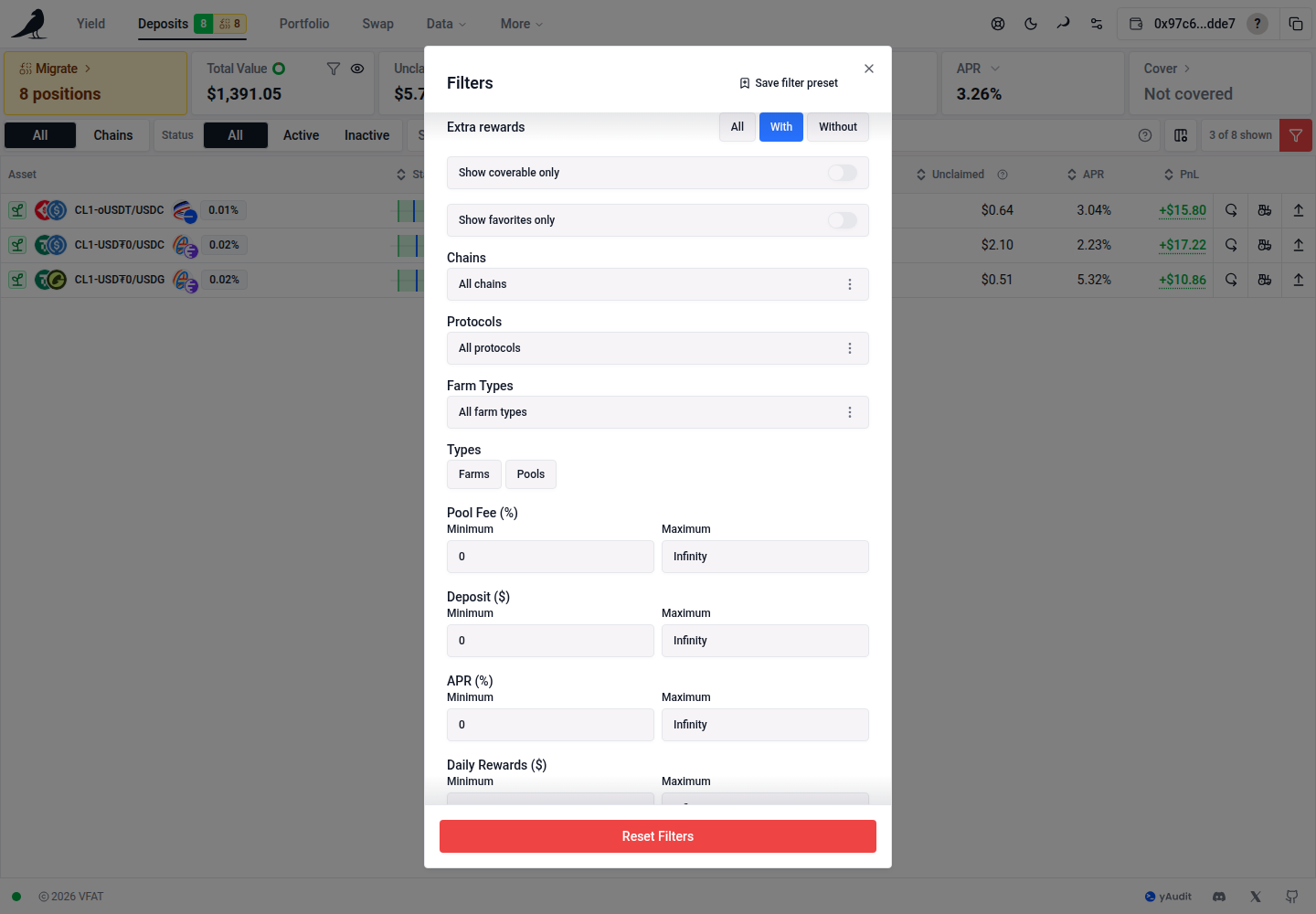
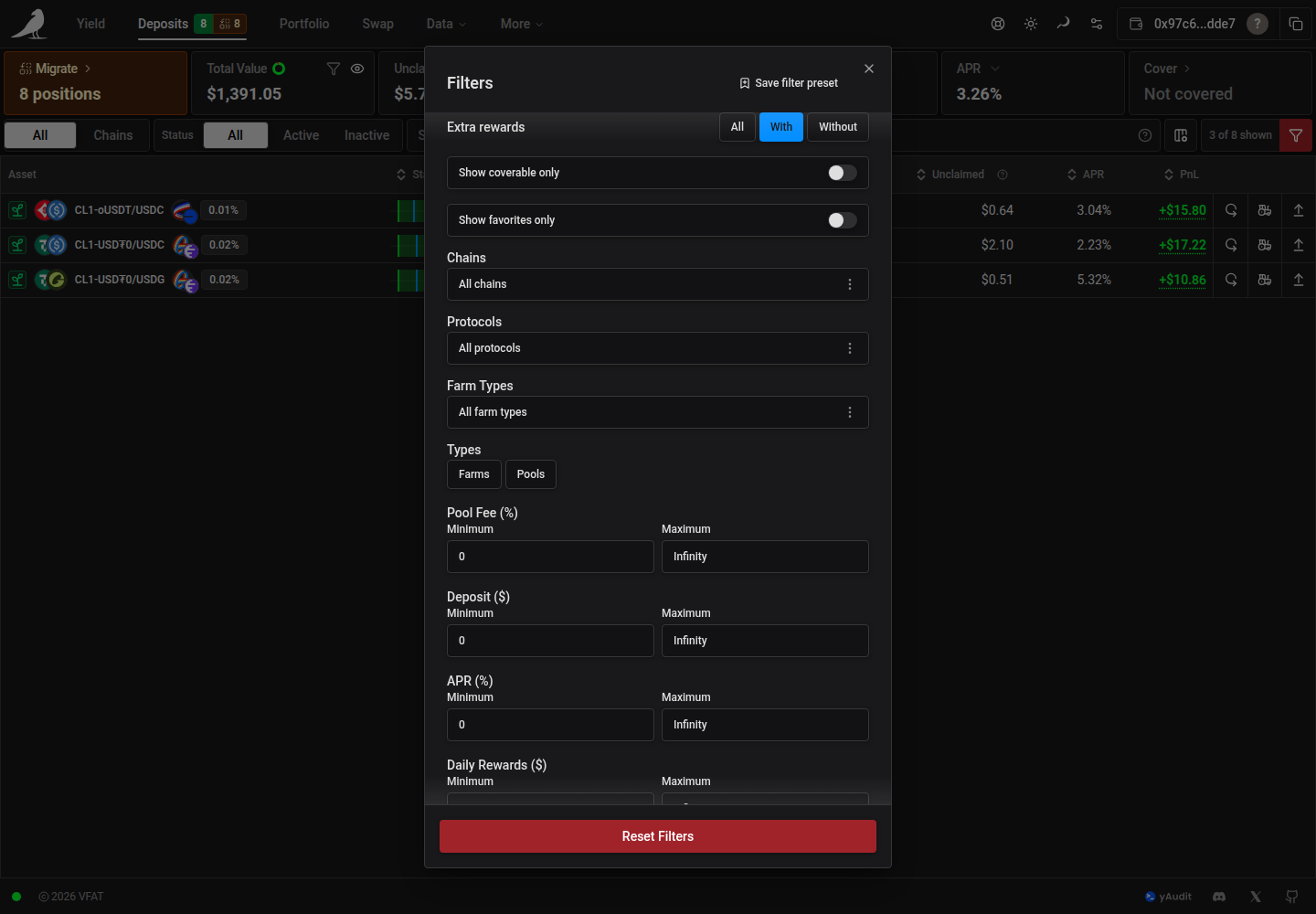
On phones, the same choices appear at the top of the filters drawer.
Choose Customize columns → Detailed view to show position status, deposited value, unclaimed earnings, estimated periodic rewards, APR, and PnL together. Your choices are saved in this browser and also apply on smaller screens. Reset to Default restores the responsive defaults.
The PnL and ROI columns sort by their displayed figures, including figures with a partial-data caveat. Cells showing Partial or an unavailable placeholder stay at the end in either sort direction.
Position status
Click Status to put out-of-range positions first, furthest outside their range at the top, followed by in-range positions closest to an edge. Click again to reverse this order. Distance is the percentage difference between the current pool price and the nearest range boundary, matching the Status readout. Positions without a concentrated-liquidity range or a usable price stay at the bottom in both directions. The order updates when prices or position ranges change, and the selected sort is preserved when you reload or share the URL.
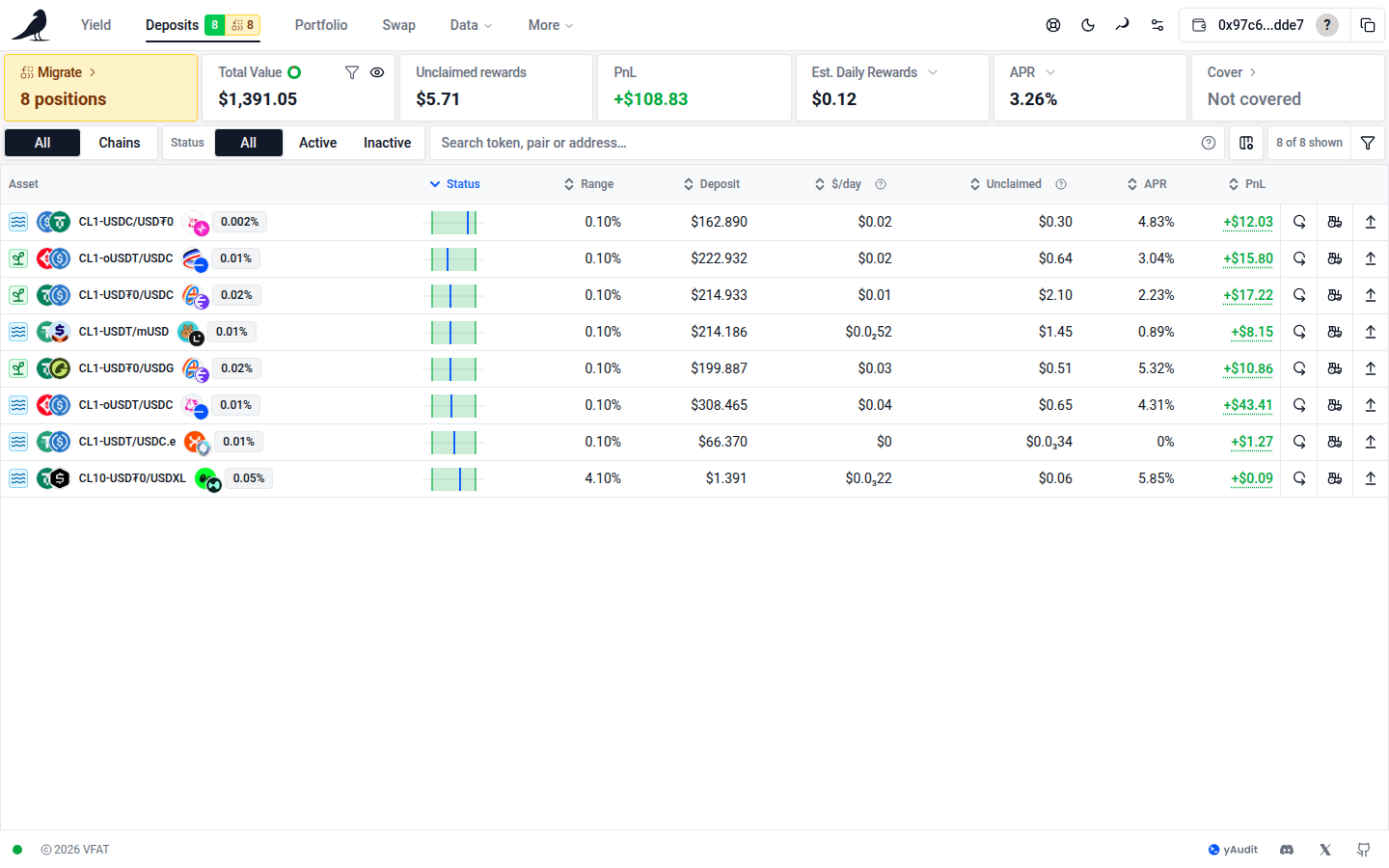
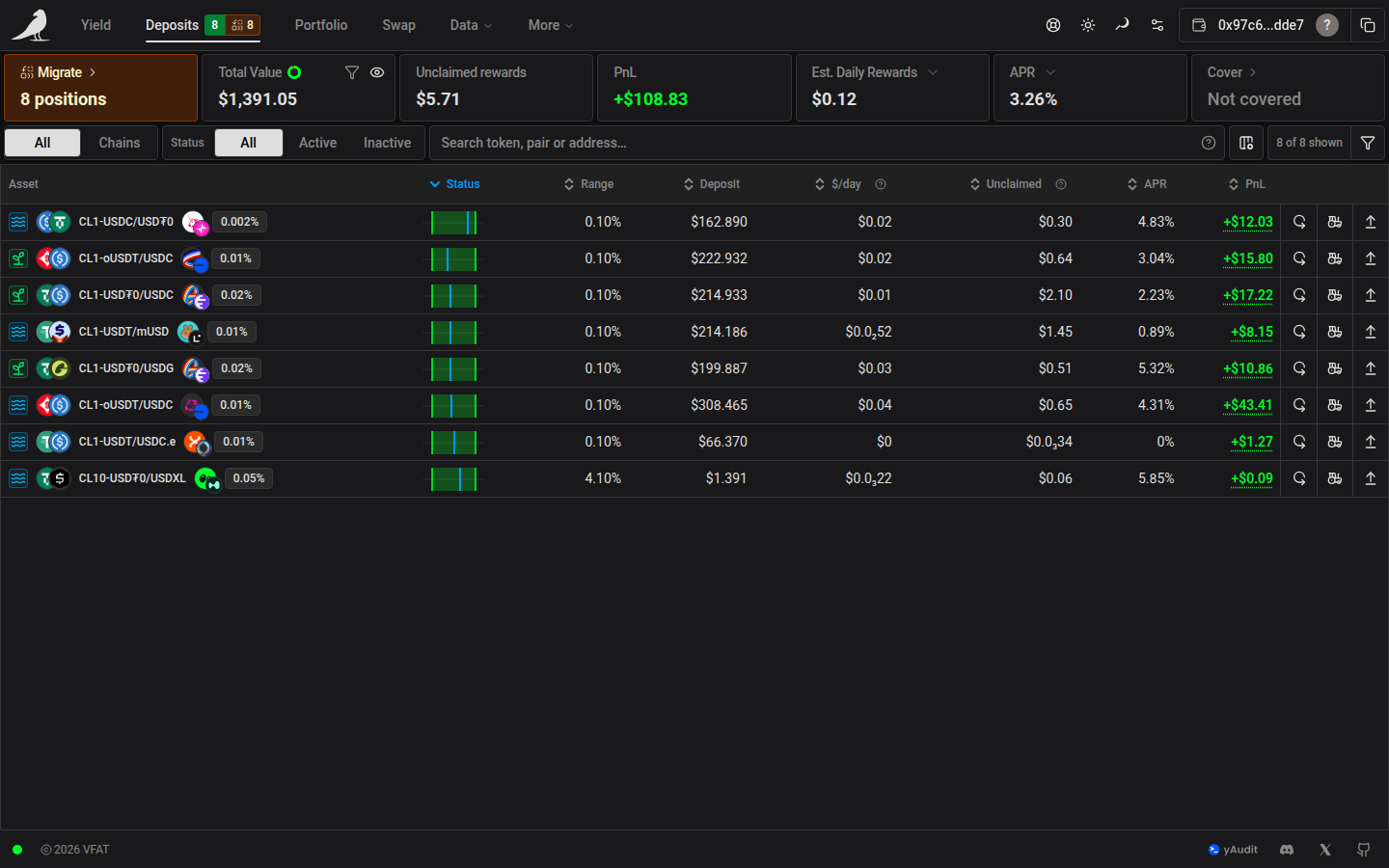
While a transaction against a position is confirming, that row shows a “Position data updating” banner until the new state is reflected. Positions also indicate whether they’re currently in range (for concentrated liquidity) and whether cover is active.
Pending transactions
Choose Run in background to keep a transaction running while you use the site. Starting an action on another position asks you to confirm Queue it. An action on the same position must finish or be cancelled first.
View details lists each run with its own status, Retry, and Cancel or Dismiss controls. Cancelling stops the app from continuing that run; a transaction already approved in your wallet can still complete on-chain. Stop waiting stops all runs.
The background notification shows a short preview of long errors, keeping View details and the close button visible. On smaller screens, it appears at the top so the position action and Back buttons stay clear. You can dismiss it or open View details while the position panel stays open. Open View details to inspect the failure and copy the full error message. On an error notification, the close button dismisses all finished runs, including rejected transactions, in one click; active runs continue in the background.
Wallet prompts appear one at a time. Independent transactions can wait for confirmation together, while automation permission updates for the same Sickle wait for the preceding update to finish.
Before opening your wallet, a transaction may ask you to review adjusted deposit amounts or price impact. These prompts appear in the pending transaction details. Choose Proceed to continue or Cancel to stop. After you accept adjusted amounts, VFAT requests a fresh quote; any unused tokens stay in your wallet.
Position detail
The price selector beside the widget’s metadata shows units such as USDC per WETH. Click it once to switch to the reverse direction. It stays synchronized with the selector in the expanded Price chart for the same pool and updates price displays and range inputs without changing the position’s boundaries.
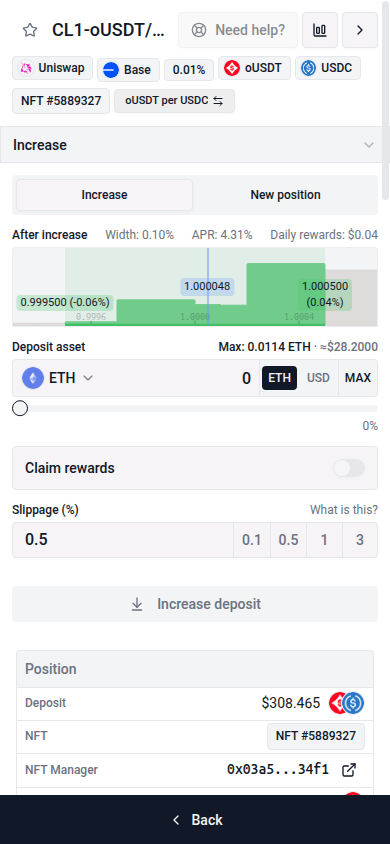
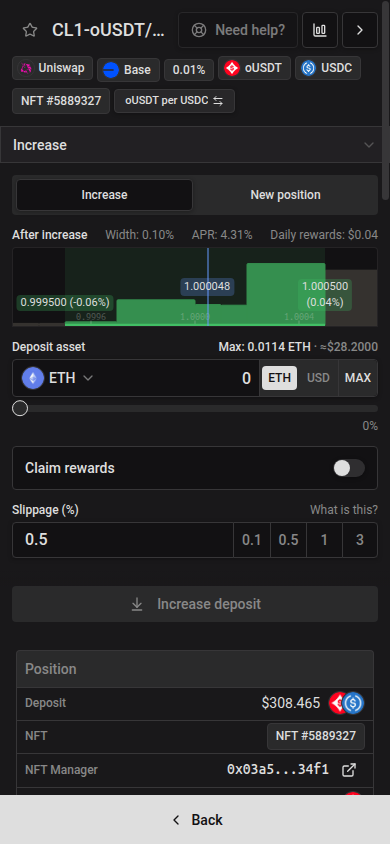
Use More details in a position’s action pane to open its farm page. For NFT positions, the link selects that NFT even when you hold several positions in the same pool. When you rebalance from this page, the link updates to the replacement NFT once it appears.
Opening a position’s action pane shows its Total PnL, ROI and APR. These are lifetime figures, calculated across rebalances and including harvested rewards and fees (plus unclaimed Earned rewards where reward metrics are available). The pane also shows the position’s age and, when available, a link to that position’s full history on info.vf.at.
Positions in pools with tokens that are not fully supported on vfat show a Limited support notice in the action pane. USD values and automation may be limited; read the notice for details about the position.
When vfat cannot load a pool’s liquidity data, the action pane shows Pool data unavailable: increasing and rebalancing are paused, but you can still compound, harvest or withdraw. If vfat cannot add liquidity to a position’s pool at all, for example because it has no active liquidity or one of its tokens is blocked, compound and increase quotes fail with Pool inactive on vfat. You can still exit, decrease or harvest the position.
The simulation and route preview appear below the submit buttons for every action, including batch actions. The preview is expanded by default when a quote is available. Use the toggle beside an action’s submit button to collapse or reopen it; loading or expanding the preview keeps the buttons in place. The form and preview can scroll while the submit controls stay visible. You can switch positions without closing the preview first. Quote errors and recovery actions appear even when the route preview is collapsed.
Route previews show indicative token amounts. Swap aggregators and price impact appear in the validated quote details when you submit the action, including any price-impact confirmation required before opening your wallet.
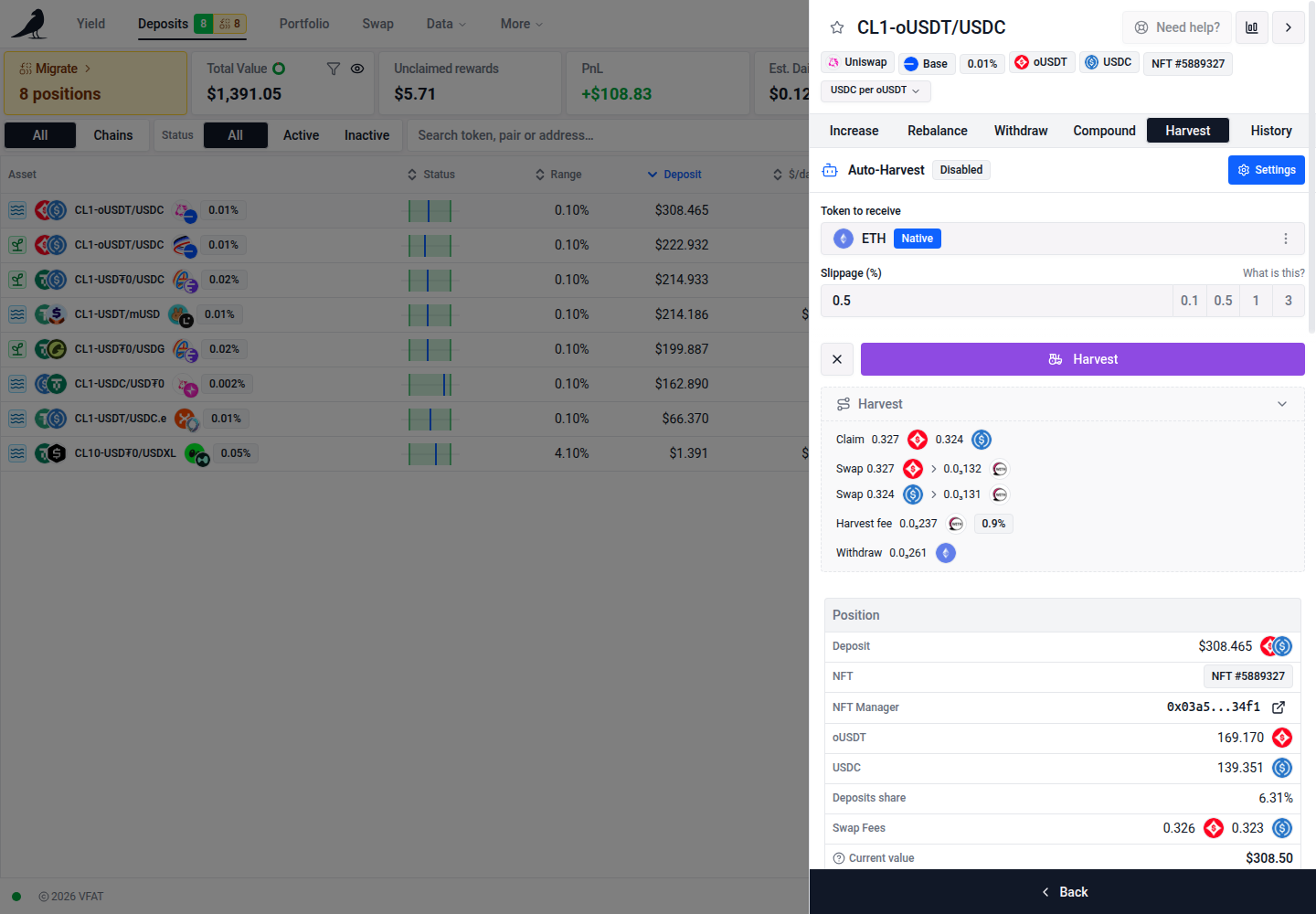
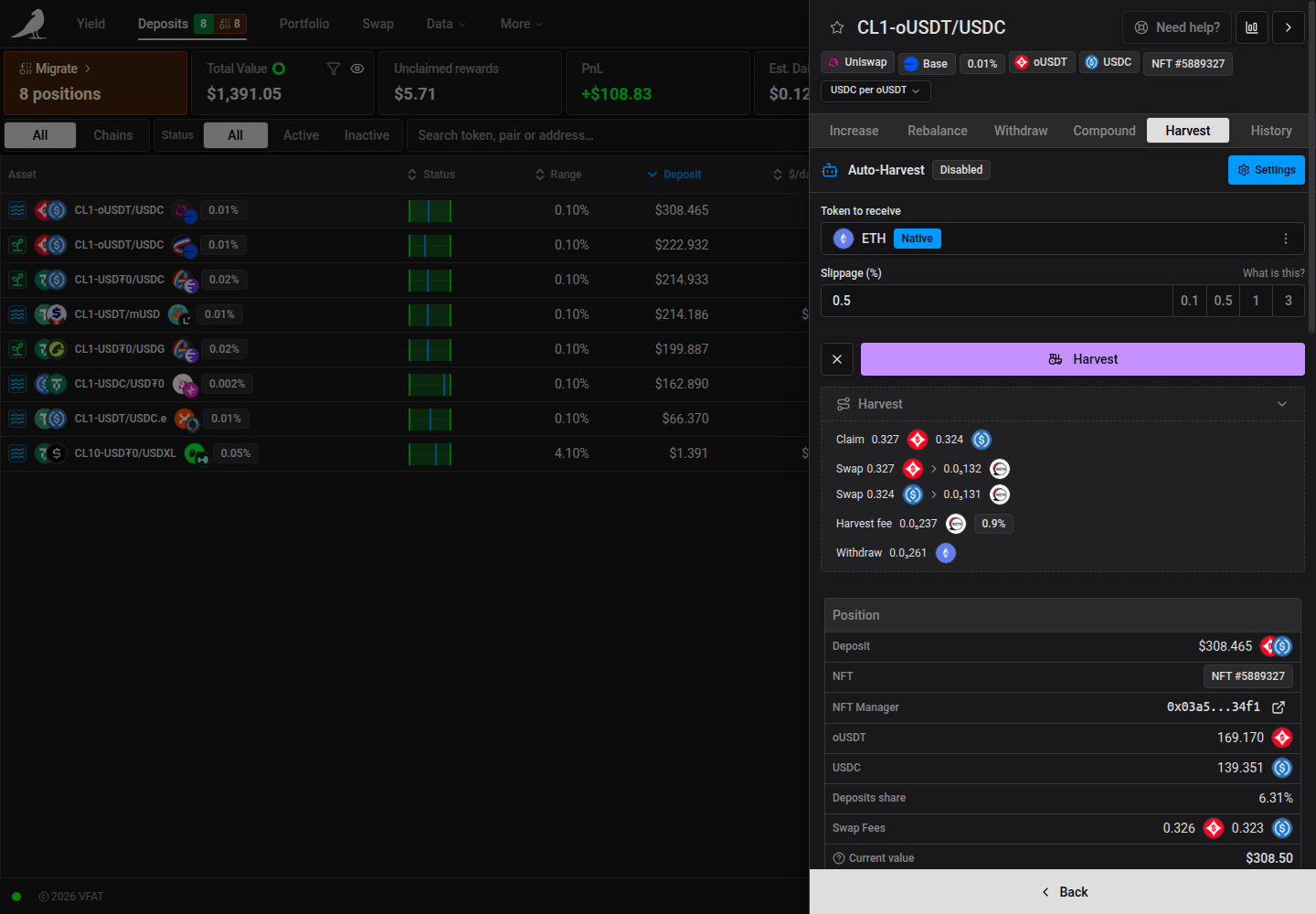
The Compound, Harvest, Rebalance, and Withdraw tabs keep their automation status visible in a full-width strip above the action form. Use Settings next to the status to open a modal where you can enable, disable, or update that automation. Closing settings returns you to your existing action inputs.
In Rebalance, the current position range chart stays visible above the new range controls. An out-of-range position shows a compact red warning strip directly below the automation status, with no gap between the strips.
When Auto-Rebalance is off, the untouched manual target follows your existing range while the position is in range and recentres with the same width when it leaves the range. Selecting a preset or editing a bound preserves your chosen percentage offsets through price refreshes, even if they initially match the default. Opening another position starts with that position’s defaults.
Click into a new range bound to adjust it with the mouse wheel: scroll up to increase or down to decrease by one allowed pool tick increment, within the same limits as the + / − buttons. Wheel adjustment only applies while that input is focused.
In Increase, the Deposit asset picker stays inside the combined amount row when switching between one token and a pair. For a pair, the picker remains active but the shared amount, unit switch, and MAX are greyed out; use Auto Max or the two token amount inputs below instead. Switching back to a single token re-enables the combined row and resets its amount.
Bush (Balancer V3) pools hold two to eight tokens. You can deposit or increase with a single token, or select the combined pool-token option to supply every underlying token. LP pools use one amount input per underlying token; editing one pairs the others in the pool’s reserve ratios. You can select native currency instead of its wrapped token when it is an underlying asset, and Auto Max reserves the estimated network fee before calculating proportional amounts. Auto Max uses the largest proportional amounts your balances cover. Pool, position, and transaction details list every token, and withdrawing to underlying returns the pool tokens. Selecting existing Bush LP tokens (BPT) in Increase transfers them directly into the position and keeps its saved automation settings. Bush positions support Auto-Exit; reward automation, compound, harvest, and moves between Sickle positions are unavailable.
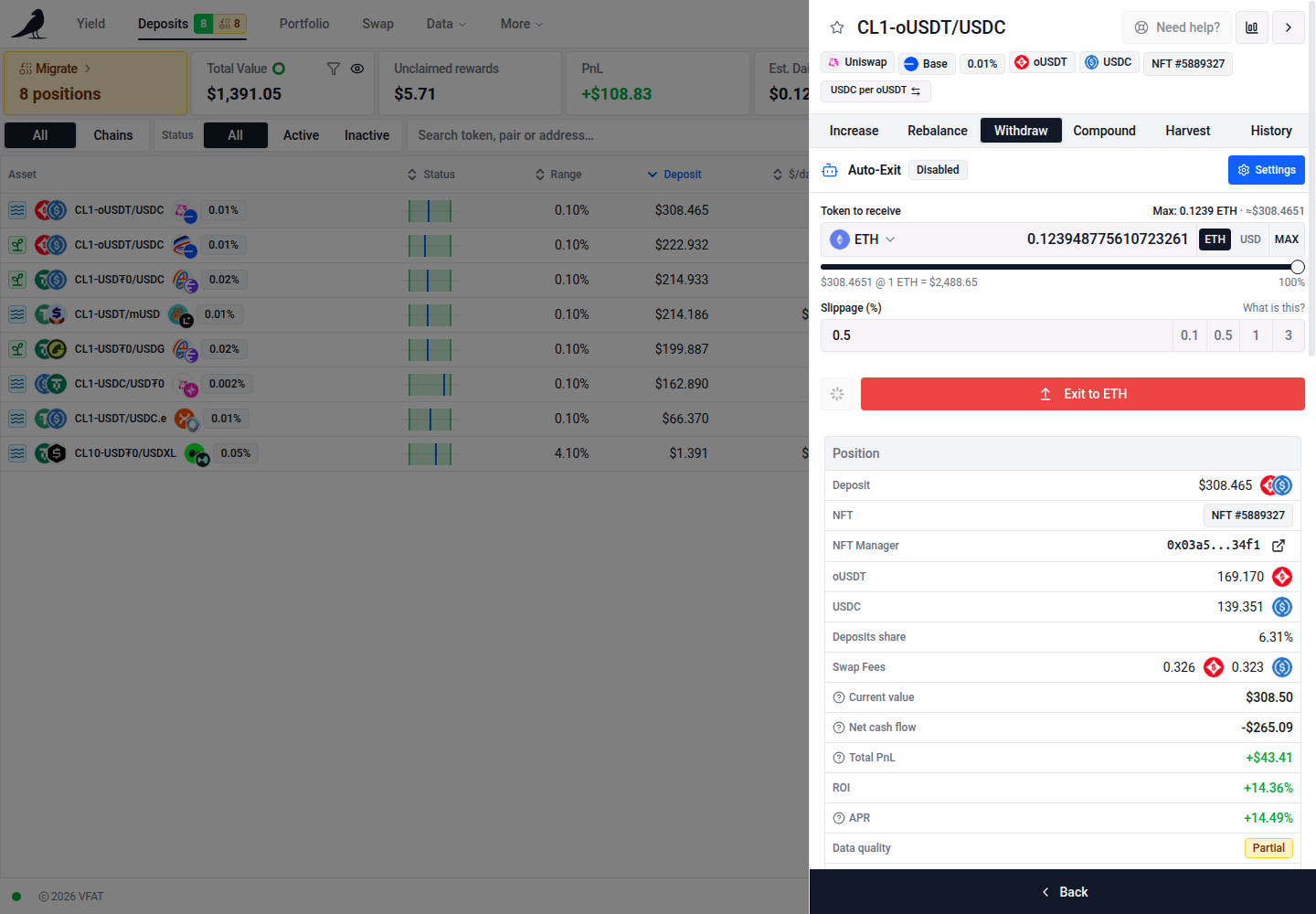
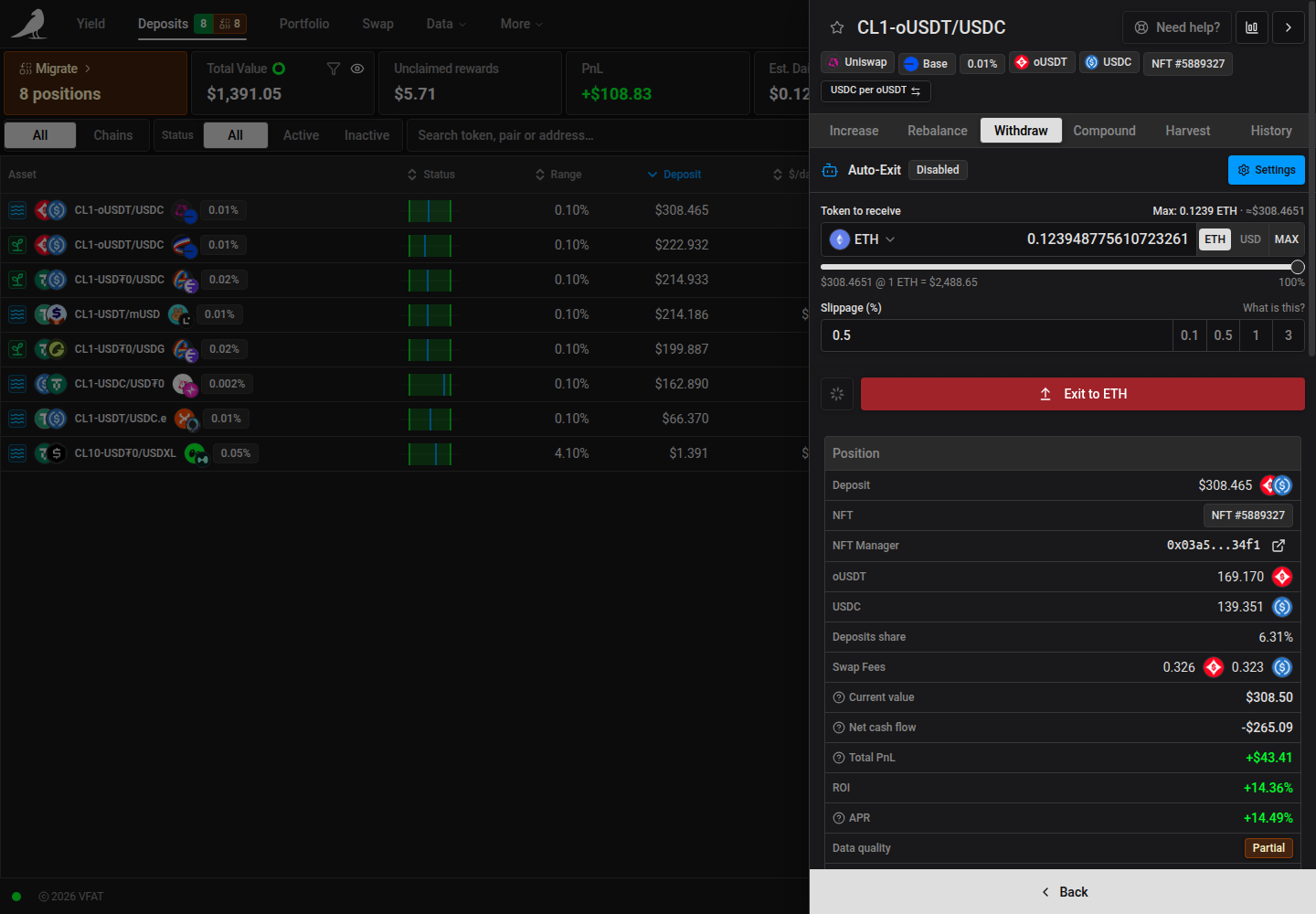
In Withdraw, choose the asset and amount in the combined Token to receive field. The picker, amount, units, and MAX share one row, matching deposits and swaps. The slider still sets the percentage to withdraw. Choosing a different token keeps that percentage; choosing the position NFT itself withdraws the whole NFT without an amount field.
The History tab has two views: Performance and Transactions. It opens on Transactions, which lists every action taken on the position: deposits, withdrawals, harvests, compounds, rebalances, moves and exits, each linking to its transaction in the block explorer. Filter by operation type or a date range. An automation icon (with a fuel icon when it drew from your prepaid gas account, see Sickle) marks actions that ran automatically rather than ones you triggered manually. Switch to Performance to see the position’s metrics and 30-day performance graph. Transaction filters and expanded rows are kept when switching between these views.
Migration
When positions are available to migrate, the Migrate card above the Deposits table shows their count. Select it to open the migration dialog and review the available actions.
If Deposit NFT cannot check an existing approval, it includes an approval transaction before the deposit. Any required network switch appears in the transaction queue, where Cancel or Stop waiting stops the remaining steps.
The Deposits navigation item shows read-only tags for active positions (green), inactive or out-of-range positions (red), and positions available to migrate (amber).
If your Sickle needs a one-time automation upgrade, follow the upgrade prompt in its automation settings or action pane. The upgrade preserves your existing settings.